<?xml version="1.0" encoding="utf-8"?><feed xmlns="http://www.w3.org/2005/Atom" ><generator uri="https://jekyllrb.com/" version="4.4.1">Jekyll</generator><link href="https://dpcfd.com/feed.xml" rel="self" type="application/atom+xml" /><link href="https://dpcfd.com/" rel="alternate" type="text/html" /><updated>2026-10-25T17:02:48+00:00</updated><id>https://dpcfd.com/feed.xml</id><title type="html">∇PCFD</title><subtitle>A website for CFD enthusiasts</subtitle><author><name>Divyaprakash</name><email>divyaprakash.phd@gmail.com</email></author><entry><title type="html">OpenFOAM Variants: A Comprehensive Summary</title><link href="https://dpcfd.com/posts/2025/08/openfoam-variants/" rel="alternate" type="text/html" title="OpenFOAM Variants: A Comprehensive Summary" /><published>2025-08-25T00:00:00+00:00</published><updated>2025-08-25T00:00:00+00:00</updated><id>https://dpcfd.com/posts/2025/08/blog-post</id><content type="html" xml:base="https://dpcfd.com/posts/2025/08/openfoam-variants/"><![CDATA[<p>OpenFOAM (Open Field Operation And Manipulation) is a widely-used open source computational fluid dynamics (CFD) software that has evolved into several distinct variants over its development history. There are indeed three main branches of OpenFOAM, each with different focuses and development philosophies.</p>

<h2 id="the-three-main-openfoam-variants">The Three Main OpenFOAM Variants</h2>

<h3 id="1-openfoam-foundation">1. <a href="OpenFOAM.org">OpenFOAM Foundation</a></h3>

<p><strong>Developer</strong>: The OpenFOAM Foundation, with development by CFD Direct
<strong>Current Version</strong>: OpenFOAM v13 (released July 2025)
<strong>Release Schedule</strong>: Annual releases
<strong>Website</strong>: openfoam.org</p>

<p>The OpenFOAM Foundation distributes OpenFOAM exclusively as free and open source software under the General Public License (GPL) v3. This version is developed by CFD Direct and released through The OpenFOAM Foundation, a not-for-profit organization.</p>

<p><strong>Key Features</strong>:</p>

<ul>
  <li><strong>Ownership</strong>: The Foundation owns the copyright of the code it distributes</li>
  <li><strong>Development Focus</strong>: Emphasizes robustness, usability, and extensibility</li>
  <li><strong>Numbering System</strong>: Uses sequential numbering (v1, v2, v3… v13)</li>
  <li><strong>Academic Preference</strong>: More commonly used in academia</li>
  <li><strong>Recent Improvements</strong>: Version 13 includes rewritten mesh zones, field-based Lagrangian improvements, enhanced MULES algorithm, and better visualization support</li>
</ul>

<h3 id="2-esi-opencfd">2. <a href="OpenFOAM.com">ESI-OpenCFD</a></h3>

<p><strong>Developer</strong>: OpenCFD Ltd (wholly owned subsidiary of ESI Group, now part of Keysight Technologies)
<strong>Current Version</strong>: OpenFOAM v2506 (released June 2025)
<strong>Release Schedule</strong>: Bi-annual releases (June and December)
<strong>Website</strong>: openfoam.com</p>

<p>This version is maintained by ESI-OpenCFD and has been the commercial fork since 2016. OpenCFD Ltd owns the OpenFOAM trademark.</p>

<p><strong>Key Features</strong>:</p>

<ul>
  <li><strong>Trademark Owner</strong>: OpenCFD Ltd owns the registered OpenFOAM trademark</li>
  <li><strong>Numbering System</strong>: Uses year-month format (v2506 = June 2025)</li>
  <li><strong>Industry Focus</strong>: More commonly used in industry</li>
  <li><strong>Advanced Features</strong>: Includes overset meshing capabilities not available in the Foundation version</li>
  <li><strong>Frequent Updates</strong>: Releases every six months with extensive quality assurance testing</li>
  <li><strong>Professional Support</strong>: Backed by Keysight’s worldwide infrastructure and support services</li>
</ul>

<h3 id="3-foam-extend">3. <a href="https://sourceforge.net/projects/foam-extend/">foam-extend</a></h3>

<p><strong>Developer</strong>: Community-backed fork maintained by Wikki Ltd
<strong>Current Version</strong>: foam-extend 5.0
<strong>Website</strong>: foam-extend project on SourceForge</p>

<p>foam-extend is a community-driven fork that diverged from the main OpenFOAM development line, focusing on preserving and extending advanced features.</p>

<p><strong>Key Features</strong>:</p>

<ul>
  <li><strong>Community-Driven</strong>: Open project welcoming contributions from all users and developers</li>
  <li><strong>Extended Functionality</strong>: Contains features that were removed from other OpenFOAM versions</li>
  <li><strong>Specialized Applications</strong>: Strong focus on fluid-structure interaction, turbomachinery, and advanced CFD features</li>
  <li><strong>Different Architecture</strong>: Uses different naming conventions and setup procedures compared to other versions</li>
  <li><strong>Advanced Features</strong>: Includes general grid interpolation (GGI), block-coupled matrix support, comprehensive dynamic mesh capability, and finite area methods</li>
</ul>

<h2 id="historical-development">Historical Development</h2>

<p>The complex history of OpenFOAM development explains the current fragmentation:</p>

<ol>
  <li><strong>1989</strong>: Henry Weller creates “FOAM” at Imperial College London</li>
  <li><strong>2004</strong>: OpenFOAM released as open source by OpenCFD Ltd</li>
  <li><strong>2011</strong>: OpenCFD acquired by SGI; OpenFOAM Foundation created to hold copyright</li>
  <li><strong>2012</strong>: OpenCFD acquired by ESI Group</li>
  <li><strong>2014</strong>: Henry Weller and Chris Greenshields leave ESI to form CFD Direct</li>
  <li><strong>2016</strong>: OpenCFD begins releasing its own version directly (v1606+)</li>
  <li><strong>2024</strong>: ESI OpenCFD becomes part of Keysight Technologies</li>
</ol>

<h2 id="key-differences-summary">Key Differences Summary</h2>

<table>
  <thead>
    <tr>
      <th style="text-align: left">Aspect</th>
      <th style="text-align: left">OpenFOAM Foundation</th>
      <th style="text-align: left">ESI-OpenCFD</th>
      <th style="text-align: left">foam-extend</th>
    </tr>
  </thead>
  <tbody>
    <tr>
      <td style="text-align: left"><strong>Release Frequency</strong></td>
      <td style="text-align: left">Annual</td>
      <td style="text-align: left">Bi-annual</td>
      <td style="text-align: left">Irregular</td>
    </tr>
    <tr>
      <td style="text-align: left"><strong>Numbering</strong></td>
      <td style="text-align: left">Sequential (v13)</td>
      <td style="text-align: left">Year-Month (v2506)</td>
      <td style="text-align: left">Version numbers (5.0)</td>
    </tr>
    <tr>
      <td style="text-align: left"><strong>Primary Users</strong></td>
      <td style="text-align: left">Academia</td>
      <td style="text-align: left">Industry</td>
      <td style="text-align: left">Specialized research</td>
    </tr>
    <tr>
      <td style="text-align: left"><strong>Key Features</strong></td>
      <td style="text-align: left">Robustness, usability</td>
      <td style="text-align: left">Overset meshes, commercial support</td>
      <td style="text-align: left">Advanced CFD features, FSI</td>
    </tr>
    <tr>
      <td style="text-align: left"><strong>License</strong></td>
      <td style="text-align: left">GPL v3</td>
      <td style="text-align: left">GPL v3</td>
      <td style="text-align: left">GPL v3</td>
    </tr>
    <tr>
      <td style="text-align: left"><strong>Support</strong></td>
      <td style="text-align: left">Community, CFD Direct training</td>
      <td style="text-align: left">Professional support</td>
      <td style="text-align: left">Community</td>
    </tr>
  </tbody>
</table>

<h2 id="which-version-to-choose">Which Version to Choose?</h2>

<p>The choice depends on your specific needs:</p>

<ul>
  <li><strong>Students and General Learning</strong>: Any version works well, but Foundation version may be preferable for academic use</li>
  <li><strong>Advanced Features</strong>: Check specific capabilities - ESI version for overset meshes, foam-extend for fluid-structure interaction</li>
  <li><strong>Industry Applications</strong>: ESI version often preferred for commercial applications</li>
  <li><strong>Research</strong>: Consider foam-extend if you need specialized advanced features that were removed from other versions</li>
</ul>

<p>All three versions maintain compatibility with standard OpenFOAM solvers and cases, though some differences exist in advanced features and specific implementations.</p>]]></content><author><name>Divyaprakash</name><email>divyaprakash.phd@gmail.com</email></author><category term="OpenFOAM" /><category term="ESI" /><category term="foam-extend" /><summary type="html"><![CDATA[OpenFOAM (Open Field Operation And Manipulation) is a widely-used open source computational fluid dynamics (CFD) software that has evolved into several distinct variants over its development history. There are indeed three main branches of OpenFOAM: the Foundation version (OpenFOAM.org) developed by CFD Direct, the ESI-OpenCFD commercial fork (OpenFOAM.com), and the community-driven foam-extend project. Each variant has different focuses, release schedules, and specialized features tailored to different user communities ranging from academia to industry applications.]]></summary></entry><entry><title type="html">GSoC Week 5: The Hardware-Aware Mindset for High-Performance C++</title><link href="https://dpcfd.com/posts/2025/08/contiguous-memory-blog-post/" rel="alternate" type="text/html" title="GSoC Week 5: The Hardware-Aware Mindset for High-Performance C++" /><published>2025-08-07T00:00:00+00:00</published><updated>2025-08-07T00:00:00+00:00</updated><id>https://dpcfd.com/posts/2025/08/blog-post-10</id><content type="html" xml:base="https://dpcfd.com/posts/2025/08/contiguous-memory-blog-post/"><![CDATA[<p>As a computational researcher, you’ve likely encountered this scenario: your C++ code is algorithmically sound, your logic is correct, but it runs frustratingly slow. You profile it and find the bottleneck is in a hot loop that processes a large matrix. The culprit isn’t the algorithm’s complexity, but something more subtle and fundamental: the layout of your data in memory.</p>

<p>Let’s compare two common ways to represent a matrix in C++: <code class="language-plaintext highlighter-rouge">std::vector&lt;std::vector&lt;double&gt;&gt;</code> and a single, flattened <code class="language-plaintext highlighter-rouge">std::vector&lt;double&gt;</code>. While the former is often more intuitive, the latter is orders of magnitude faster. Understanding why requires us to look past the C++ abstraction and think like the hardware.</p>

<h3 id="the-core-of-the-matter-the-cpu-cache">The Core of the Matter: The CPU Cache</h3>

<p>Modern CPUs are incredibly fast, but main memory (RAM) is sluggish in comparison. To bridge this speed gap, CPUs use small, extremely fast caches (L1, L2, L3) located directly on the chip. When your program needs data from a memory address, the CPU doesn’t just fetch that single byte. It fetches the entire <strong>cache line</strong>, a fixed-size block, typically 64 bytes, that contains the requested address.</p>

<p>This is based on the principle of <strong>spatial locality</strong>: if you access a piece of data, you are highly likely to need the data located right next to it very soon.</p>

<p>Working in tandem with the cache is the <strong>hardware prefetcher</strong>, a smart assistant that monitors your memory access patterns. If it detects a simple, predictable pattern (like reading addresses one after another), it will proactively fetch the <em>next</em> cache lines it thinks you’ll need, hiding the latency of the slow trip to RAM.</p>

<p>The effectiveness of these two hardware components is entirely dependent on your choice of data structure.</p>

<h3 id="the-cache-killer-stdvectorstdvectort">The Cache Killer: <code class="language-plaintext highlighter-rouge">std::vector&lt;std::vector&lt;T&gt;&gt;</code></h3>

<p>This structure is an abstraction of a 2D matrix, but in memory, it’s anything but. It’s a vector of pointers, and each of those pointers leads to a completely separate, non-contiguous block of memory for each row.</p>

<p>Consider iterating through this matrix row by row:</p>
<ul>
  <li>The loop for row 0 accesses data at memory region <code class="language-plaintext highlighter-rouge">0xAAAA</code>.</li>
  <li>The loop for row 1 accesses data at memory region <code class="language-plaintext highlighter-rouge">0xBBBB</code>.</li>
  <li>The loop for row 2 accesses data at memory region <code class="language-plaintext highlighter-rouge">0xCCCC</code>.</li>
</ul>

<p>From the hardware prefetcher’s perspective, the sequence of base addresses (<code class="language-plaintext highlighter-rouge">0xAAAA</code>, <code class="language-plaintext highlighter-rouge">0xBBBB</code>, <code class="language-plaintext highlighter-rouge">0xCCCC</code>) is random and unpredictable. It cannot guess where the next row is. As a result, every time your outer loop finishes one row and moves to the next, the CPU stalls. It must issue a new, slow request to main memory, resulting in a <strong>compulsory cache miss</strong>. You are guaranteed to pay the full price of memory latency on every single row transition.</p>

<h3 id="the-prefetchers-best-friend-the-flattened-stdvectort">The Prefetcher’s Best Friend: The Flattened <code class="language-plaintext highlighter-rouge">std::vector&lt;T&gt;</code></h3>

<p>Now, consider a single, contiguous vector where the matrix is stored row by row.</p>

<ul>
  <li>Row 0 starts at address <code class="language-plaintext highlighter-rouge">0x10000</code>.</li>
  <li>Row 1 starts at address <code class="language-plaintext highlighter-rouge">0x10000 + row_size_in_bytes</code>.</li>
  <li>Row 2 starts at address <code class="language-plaintext highlighter-rouge">0x10000 + 2 * row_size_in_bytes</code>.</li>
</ul>

<p>This creates a <strong>perfectly linear, strided access pattern</strong>. This is the exact pattern the hardware prefetcher is designed to exploit. As your code nears the end of processing row 0, the prefetcher has already recognized the pattern and has started fetching the cache lines for row 1. When your code is ready for the next row, the data is already waiting in the cache. The CPU stall is avoided.</p>

<h3 id="beyond-raw-speed-the-architectural-wins">Beyond Raw Speed: The Architectural Wins</h3>

<p>The benefits of a flat, contiguous data structure go far beyond the inner loop. Adopting this design is a fundamental architectural improvement.</p>

<ol>
  <li>
    <p><strong>Seamless Interoperability:</strong> A flat C-style array is the <em>lingua franca</em> of high-performance computing. Want to offload work to a GPU? <code class="language-plaintext highlighter-rouge">cudaMemcpy</code> requires a pointer to a contiguous block of memory. Need to interface with Python for analysis? You can create a NumPy array that is a zero-copy view into your C++ vector’s memory. Integrating with high-performance libraries like Eigen, OpenBLAS, or Intel MKL becomes trivial.</p>
  </li>
  <li>
    <p><strong>Dramatically Simplified Serialization:</strong> Saving and loading your data becomes incredibly simple and fast. Instead of complex, nested loops to write each small vector, you can write the entire data block with a single function call (<code class="language-plaintext highlighter-rouge">file.write(vec.data(), vec.size() * sizeof(T))</code>).</p>
  </li>
  <li>
    <p><strong>Reduced Memory Overhead:</strong> Every <code class="language-plaintext highlighter-rouge">std::vector</code> object has memory overhead (pointers to its start, end, and capacity). A <code class="language-plaintext highlighter-rouge">vector&lt;vector&lt;T&gt;&gt;</code> representing a large matrix could consist of thousands of individual <code class="language-plaintext highlighter-rouge">std::vector</code> objects, wasting memory and leading to memory fragmentation. A single flattened vector has the absolute minimum overhead.</p>
  </li>
</ol>

<h3 id="the-takeaway">The Takeaway</h3>

<p>For a computational scientist, performance is a feature. While algorithmic complexity is crucial, it’s only half the story. True optimization requires a hardware-aware mindset. By choosing data structures that create predictable, linear access patterns, you align your code with the fundamental way CPUs are designed to work. You stop fighting the hardware and start letting its powerful caching and prefetching mechanisms work for you.</p>

<p>So the next time your code is mysteriously slow, don’t just look at the loops. Look at the memory.</p>]]></content><author><name>Divyaprakash</name><email>divyaprakash.phd@gmail.com</email></author><category term="GSoC" /><category term="GSoC" /><category term="C++" /><category term="high-performance-computing" /><category term="cache-optimization" /><category term="data-structures" /><summary type="html"><![CDATA[Refactoring SU2 code taught me that nested std::vector> scatters data across memory, leading to cache misses, while a flat std::vector creates a predictable layout that lets hardware prefetchers work efficiently. This simple change delivered notable performance gains and streamlined GPU interfacing and serialization.]]></summary></entry><entry><title type="html">Deploy Quarto Presentations to GitHub Pages</title><link href="https://dpcfd.com/posts/2025/07/blog-post-9/" rel="alternate" type="text/html" title="Deploy Quarto Presentations to GitHub Pages" /><published>2025-07-28T00:00:00+00:00</published><updated>2025-07-28T00:00:00+00:00</updated><id>https://dpcfd.com/posts/2025/07/blog-post-9</id><content type="html" xml:base="https://dpcfd.com/posts/2025/07/blog-post-9/"><![CDATA[<p>This guide provides step-by-step instructions for creating and hosting Quarto presentations on GitHub Pages.</p>

<table>
  <tbody>
    <tr>
      <td><a href="https://divyaprakash-iitd.github.io/demoslides">Demo Slides</a></td>
      <td><a href="https://github.com/divyaprakash-iitd/demoslides">Source Code</a></td>
    </tr>
  </tbody>
</table>

<h2 id="prerequisites">Prerequisites</h2>

<ul>
  <li><a href="https://quarto.org/docs/get-started/">Quarto</a> installed on your system</li>
  <li>Git repository with your presentation files</li>
  <li>GitHub account</li>
</ul>

<h2 id="project-structure">Project Structure</h2>

<p>Your project should have this structure:</p>
<div class="language-plaintext highlighter-rouge"><div class="highlight"><pre class="highlight"><code>your-presentation/
├── presentation.qmd          # Your main presentation file
├── _quarto.yml              # Quarto configuration
├── assets/                  # Images, videos, etc.
│   ├── image1.png
│   ├── video1.mp4
│   └── ...
└── docs/                    # Generated output (created by Quarto)
    ├── index.html
    ├── presentation.html
    └── ...
</code></pre></div></div>

<h2 id="step-1-create-quarto-configuration-file">Step 1: Create Quarto Configuration File</h2>

<p>Create a <code class="language-plaintext highlighter-rouge">_quarto.yml</code> file in your project root:</p>

<div class="language-yaml highlighter-rouge"><div class="highlight"><pre class="highlight"><code><span class="na">project</span><span class="pi">:</span>
  <span class="na">type</span><span class="pi">:</span> <span class="s">website</span>
  <span class="na">output-dir</span><span class="pi">:</span> <span class="s">docs</span>

<span class="na">website</span><span class="pi">:</span>
  <span class="na">title</span><span class="pi">:</span> <span class="s2">"</span><span class="s">Your</span><span class="nv"> </span><span class="s">Presentation</span><span class="nv"> </span><span class="s">Title"</span>
  <span class="na">site-url</span><span class="pi">:</span> <span class="s2">"</span><span class="s">https://your-username.github.io/your-repo-name"</span>
  
<span class="na">format</span><span class="pi">:</span>
  <span class="na">html</span><span class="pi">:</span>
    <span class="na">theme</span><span class="pi">:</span> <span class="s">default</span>
</code></pre></div></div>

<p><strong>Replace:</strong></p>
<ul>
  <li><code class="language-plaintext highlighter-rouge">Your Presentation Title</code> with your actual presentation title</li>
  <li><code class="language-plaintext highlighter-rouge">your-username</code> with your GitHub username</li>
  <li><code class="language-plaintext highlighter-rouge">your-repo-name</code> with your repository name</li>
</ul>

<h2 id="step-2-create-your-presentation">Step 2: Create Your Presentation</h2>

<p>Create a <code class="language-plaintext highlighter-rouge">.qmd</code> file (e.g., <code class="language-plaintext highlighter-rouge">presentation.qmd</code>) with your content:</p>

<div class="language-yaml highlighter-rouge"><div class="highlight"><pre class="highlight"><code><span class="nn">---</span>
<span class="na">title</span><span class="pi">:</span> <span class="s2">"</span><span class="s">Your</span><span class="nv"> </span><span class="s">Presentation</span><span class="nv"> </span><span class="s">Title"</span>
<span class="na">subtitle</span><span class="pi">:</span> <span class="s2">"</span><span class="s">Your</span><span class="nv"> </span><span class="s">Subtitle"</span>
<span class="na">author</span><span class="pi">:</span> <span class="s2">"</span><span class="s">Your</span><span class="nv"> </span><span class="s">Name"</span>
<span class="na">date</span><span class="pi">:</span> <span class="s2">"</span><span class="s">2025-07-29"</span>
<span class="na">format</span><span class="pi">:</span> 
  <span class="na">revealjs</span><span class="pi">:</span>
    <span class="na">theme</span><span class="pi">:</span> <span class="s">default</span>
    <span class="na">slide-number</span><span class="pi">:</span> <span class="kc">true</span>
    <span class="na">chalkboard</span><span class="pi">:</span> <span class="kc">true</span>
    <span class="na">logo</span><span class="pi">:</span> <span class="s">your-logo.png</span>
    <span class="na">footer</span><span class="pi">:</span> <span class="s2">"</span><span class="s">Your</span><span class="nv"> </span><span class="s">Footer</span><span class="nv"> </span><span class="s">Text"</span>
    <span class="na">title-slide-attributes</span><span class="pi">:</span>
      <span class="na">data-background-image</span><span class="pi">:</span> <span class="s2">"</span><span class="s">background.svg"</span>
      <span class="na">data-background-size</span><span class="pi">:</span> <span class="s2">"</span><span class="s">auto"</span>
      <span class="na">data-background-opacity</span><span class="pi">:</span> <span class="s2">"</span><span class="s">0.3"</span>
      <span class="na">data-background-position</span><span class="pi">:</span> <span class="s2">"</span><span class="s">bottom"</span>
<span class="nn">---</span>

<span class="c1">## Slide 1</span>
<span class="s">Your content here</span>

<span class="c1">## Slide 2</span>
<span class="s">More content here</span>
</code></pre></div></div>

<h2 id="step-3-render-your-presentation">Step 3: Render Your Presentation</h2>

<p>Run the following command in your project directory:</p>

<div class="language-bash highlighter-rouge"><div class="highlight"><pre class="highlight"><code>quarto render
</code></pre></div></div>

<p>This will:</p>
<ul>
  <li>Generate HTML files in the <code class="language-plaintext highlighter-rouge">docs/</code> directory</li>
  <li>Copy all assets (images, videos) to the output directory</li>
  <li>Create an <code class="language-plaintext highlighter-rouge">index.html</code> file for GitHub Pages</li>
</ul>

<h2 id="step-4-initialize-git-repository-if-not-already-done">Step 4: Initialize Git Repository (if not already done)</h2>

<div class="language-bash highlighter-rouge"><div class="highlight"><pre class="highlight"><code>git init
git add <span class="nb">.</span>
git commit <span class="nt">-m</span> <span class="s2">"Initial commit"</span>
</code></pre></div></div>

<h2 id="step-5-push-to-github">Step 5: Push to GitHub</h2>

<ol>
  <li>Create a new repository on GitHub</li>
  <li>Add the remote origin:
    <div class="language-bash highlighter-rouge"><div class="highlight"><pre class="highlight"><code>git remote add origin https://github.com/your-username/your-repo-name.git
</code></pre></div>    </div>
  </li>
  <li>Push your code:
    <div class="language-bash highlighter-rouge"><div class="highlight"><pre class="highlight"><code>git push <span class="nt">-u</span> origin main
</code></pre></div>    </div>
  </li>
</ol>

<h2 id="step-6-configure-github-pages">Step 6: Configure GitHub Pages</h2>

<ol>
  <li>Go to your GitHub repository: <code class="language-plaintext highlighter-rouge">https://github.com/your-username/your-repo-name</code></li>
  <li>Click on <strong>“Settings”</strong> tab</li>
  <li>Scroll down to <strong>“Pages”</strong> in the left sidebar</li>
  <li>Under <strong>“Source”</strong>, select:
    <ul>
      <li><strong>Source</strong>: “Deploy from a branch”</li>
      <li><strong>Branch</strong>: “main”</li>
      <li><strong>Folder</strong>: “/ (docs)”</li>
    </ul>
  </li>
  <li>Click <strong>“Save”</strong></li>
</ol>

<h2 id="step-7-access-your-presentation">Step 7: Access Your Presentation</h2>

<p>After a few minutes, your presentation will be available at:</p>
<ul>
  <li><strong>Main site</strong>: <code class="language-plaintext highlighter-rouge">https://your-username.github.io/your-repo-name/</code></li>
  <li><strong>Direct link</strong>: <code class="language-plaintext highlighter-rouge">https://your-username.github.io/your-repo-name/presentation.html</code></li>
</ul>

<h2 id="automatic-updates">Automatic Updates</h2>

<p>To update your presentation:</p>

<ol>
  <li>Edit your <code class="language-plaintext highlighter-rouge">.qmd</code> file</li>
  <li>Re-render: <code class="language-plaintext highlighter-rouge">quarto render</code></li>
  <li>Commit and push changes:
    <div class="language-bash highlighter-rouge"><div class="highlight"><pre class="highlight"><code>git add <span class="nb">.</span>
git commit <span class="nt">-m</span> <span class="s2">"Update presentation"</span>
git push origin main
</code></pre></div>    </div>
  </li>
</ol>

<p>GitHub Pages will automatically update your site within a few minutes.</p>

<h2 id="troubleshooting">Troubleshooting</h2>

<h3 id="common-issues">Common Issues</h3>

<ol>
  <li><strong>404 Error</strong>:
    <ul>
      <li>Check that GitHub Pages is configured to serve from the correct branch and folder</li>
      <li>Ensure <code class="language-plaintext highlighter-rouge">index.html</code> exists in the <code class="language-plaintext highlighter-rouge">docs/</code> directory</li>
    </ul>
  </li>
  <li><strong>Missing Assets</strong>:
    <ul>
      <li>Verify that all images/videos are in the correct relative paths</li>
      <li>Check that Quarto copied all assets to the <code class="language-plaintext highlighter-rouge">docs/</code> directory</li>
    </ul>
  </li>
  <li><strong>Site Not Updating</strong>:
    <ul>
      <li>Wait a few minutes for GitHub Pages to update</li>
      <li>Check the repository’s “Actions” tab for any deployment errors</li>
      <li>Clear your browser cache</li>
    </ul>
  </li>
  <li><strong>Relative Path Issues</strong>:
    <ul>
      <li>Use relative paths for all assets (e.g., <code class="language-plaintext highlighter-rouge">./image.png</code> not <code class="language-plaintext highlighter-rouge">/image.png</code>)</li>
      <li>Ensure the <code class="language-plaintext highlighter-rouge">site-url</code> in <code class="language-plaintext highlighter-rouge">_quarto.yml</code> matches your GitHub Pages URL</li>
    </ul>
  </li>
</ol>

<h3 id="useful-commands">Useful Commands</h3>

<div class="language-bash highlighter-rouge"><div class="highlight"><pre class="highlight"><code><span class="c"># Preview locally before deploying</span>
quarto preview

<span class="c"># Render specific file</span>
quarto render presentation.qmd

<span class="c"># Check Quarto version</span>
quarto <span class="nt">--version</span>

<span class="c"># Validate Quarto project</span>
quarto check
</code></pre></div></div>

<h2 id="resources">Resources</h2>

<ul>
  <li><a href="https://quarto.org">Quarto Documentation</a></li>
  <li><a href="https://docs.github.com/en/pages">GitHub Pages Documentation</a></li>
  <li><a href="https://revealjs.com/">RevealJS Documentation</a></li>
  <li><a href="https://quarto.org/docs/presentations/">Quarto Presentations Guide</a></li>
</ul>

<hr />]]></content><author><name>Divyaprakash</name><email>divyaprakash.phd@gmail.com</email></author><category term="quarto" /><category term="revealjs" /><category term="github pages" /><summary type="html"><![CDATA[This guide provides step-by-step instructions for creating and hosting Quarto presentations on GitHub Pages.]]></summary></entry><entry><title type="html">GSoC Week 4: Best Practices for Integrating Optional Third-Party Libraries in C++: A Case Study with the Tracy Profiler</title><link href="https://dpcfd.com/posts/2025/07/gsoc-week-4/" rel="alternate" type="text/html" title="GSoC Week 4: Best Practices for Integrating Optional Third-Party Libraries in C++: A Case Study with the Tracy Profiler" /><published>2025-07-18T00:00:00+00:00</published><updated>2025-07-18T00:00:00+00:00</updated><id>https://dpcfd.com/posts/2025/07/gsoc-week-4</id><content type="html" xml:base="https://dpcfd.com/posts/2025/07/gsoc-week-4/"><![CDATA[<p>As part of my work on the SU2 CFD software suite for Google Summer of Code, I have been focused on performance analysis and optimization. A critical aspect of this work is the integration of profiling tools to identify performance bottlenecks. This article continues from the previous post about integrating the <a href="https://dpcfd.com/posts/2025/07/gsoc-week-3/">Tracy profiler</a> into a large, mature C++ codebase, highlighting the importance of using software engineering best practices for maintainability and robustness.</p>

<h2 id="the-challenge-integrating-an-optional-dependency">The Challenge: Integrating an Optional Dependency</h2>

<p>Tracy is a powerful, frame-by-frame profiler that requires code to be manually annotated (or “instrumented”) to measure the execution time of specific scopes. The most direct method of integration is to include the main Tracy header and use its macros within the functions of interest.</p>

<p>For example, to profile the <code class="language-plaintext highlighter-rouge">Predict_MLP</code> function in <code class="language-plaintext highlighter-rouge">CDataDrivenFluid.cpp</code>, one could do the following:</p>

<ol>
  <li>Add an include directive for the Tracy header:
    <div class="language-cpp highlighter-rouge"><div class="highlight"><pre class="highlight"><code><span class="cp">#include</span> <span class="cpf">&lt;tracy/Tracy.hpp&gt;</span><span class="cp">
</span></code></pre></div>    </div>
  </li>
  <li>Insert the annotation macro at the beginning of the target function:
    <div class="language-cpp highlighter-rouge"><div class="highlight"><pre class="highlight"><code><span class="kt">void</span> <span class="n">CDataDrivenFluid</span><span class="o">::</span><span class="n">Predict_MLP</span><span class="p">(...)</span> <span class="p">{</span>
    <span class="n">ZoneScopedN</span><span class="p">(</span><span class="s">"Predict_MLP"</span><span class="p">);</span> <span class="c1">// Tracy annotation</span>
    <span class="c1">// ... function logic ...</span>
<span class="p">}</span>
</code></pre></div>    </div>
  </li>
</ol>

<p>While this approach is functionally correct, it presents significant challenges in the context of a large, collaborative project like SU2. The primary issue is that Tracy is an <em>optional</em> dependency. Not all developers will have it installed, and it should not be required for a standard build. This direct integration method would cause compilation to fail for any user who has not explicitly set up the Tracy library.</p>

<p>This necessitates a more robust solution that allows for the feature to be enabled or disabled at compile time.</p>

<h2 id="the-role-of-the-c-preprocessor">The Role of the C++ Preprocessor</h2>

<p>The C++ preprocessor is a tool that parses source code and processes instructions (known as directives) before the code is passed to the compiler. While commonly used for including headers (<code class="language-plaintext highlighter-rouge">#include</code>), it also provides powerful capabilities for conditional compilation.</p>

<p>Three directives are key to our solution:</p>

<ol>
  <li>
    <p><code class="language-plaintext highlighter-rouge">#define</code>: This directive is used to define a macro, which is essentially a named fragment of code. The preprocessor will substitute the macro’s name with its defined value throughout the code.</p>
  </li>
  <li>
    <p><code class="language-plaintext highlighter-rouge">#ifdef &lt;macro&gt;</code>: This checks if a given macro has been defined. This is typically done via a compiler flag (e.g., <code class="language-plaintext highlighter-rouge">g++ -D&lt;macro&gt;</code>).</p>
  </li>
  <li>
    <p><code class="language-plaintext highlighter-rouge">#else</code> and <code class="language-plaintext highlighter-rouge">#endif</code>: These work with <code class="language-plaintext highlighter-rouge">#ifdef</code> to create conditional blocks, allowing the preprocessor to include or ignore sections of code based on the defined macros.</p>
  </li>
</ol>

<p>By combining these directives, we can instruct the preprocessor to alter the source code based on the build configuration, effectively including or removing the Tracy annotations before the compiler even sees them.</p>

<h2 id="the-solution-a-centralized-wrapper-header">The Solution: A Centralized Wrapper Header</h2>

<p>To manage the optional integration cleanly, we can create a single, centralized header file—a “wrapper”—that contains all the logic for the Tracy integration. This practice isolates the third-party dependency and provides a consistent interface for the rest of the project.</p>

<p>We created the file <code class="language-plaintext highlighter-rouge">tracy_structure.hpp</code> with the following content:</p>

<div class="language-cpp highlighter-rouge"><div class="highlight"><pre class="highlight"><code><span class="c1">// /home/divyaprakash/SU2/Common/include/tracy_structure.hpp</span>

<span class="cp">#pragma once
</span>
<span class="c1">// Check if the TRACY_ENABLE macro has been defined by the build system.</span>
<span class="cp">#ifdef TRACY_ENABLE
</span>  <span class="c1">// If defined, the project is being compiled with profiling enabled.</span>

  <span class="c1">// 1. Include the actual Tracy header to make its functionality available.</span>
<span class="cp">#  include "tracy/Tracy.hpp"
</span>
  <span class="c1">// 2. Define project-specific macros as aliases for the real Tracy macros.</span>
<span class="cp">#  define SU2_ZONE_SCOPED ZoneScoped
#  define SU2_ZONE_SCOPED_N(name) ZoneScopedN(name)
</span>
<span class="cp">#else
</span>  <span class="c1">// If not defined, the project is being compiled without profiling.</span>

  <span class="c1">// 1. Do NOT include the Tracy header.</span>

  <span class="c1">// 2. Define the project-specific macros as empty statements.</span>
<span class="cp">#  define SU2_ZONE_SCOPED
#  define SU2_ZONE_SCOPED_N(name)
</span>
<span class="cp">#endif // End of the conditional compilation block.
</span></code></pre></div></div>

<p>This approach has several key advantages:</p>

<ul>
  <li><strong>Modularity:</strong> All logic related to Tracy is contained within this single file.</li>
  <li><strong>Maintainability:</strong> If the project ever moves to a different profiler, only this wrapper file needs to be significantly modified.</li>
  <li><strong>Robustness:</strong> The code now compiles successfully for all users, regardless of whether they have Tracy enabled. When disabled, the macros compile to nothing, incurring zero performance overhead.</li>
</ul>

<h2 id="final-implementation">Final Implementation</h2>

<p>With the wrapper in place, the modification to the target source file, <code class="language-plaintext highlighter-rouge">CDataDrivenFluid.cpp</code>, becomes clean and maintainable.</p>

<p><strong>Before:</strong></p>
<div class="language-cpp highlighter-rouge"><div class="highlight"><pre class="highlight"><code><span class="cp">#include</span> <span class="cpf">&lt;tracy/Tracy.hpp&gt;</span><span class="cp">
</span><span class="c1">// ...</span>
<span class="kt">void</span> <span class="n">CDataDrivenFluid</span><span class="o">::</span><span class="n">Predict_MLP</span><span class="p">(...)</span> <span class="p">{</span>
    <span class="n">ZoneScopedN</span><span class="p">(</span><span class="s">"Predict_MLP"</span><span class="p">);</span>
    <span class="c1">// ...</span>
<span class="p">}</span>
</code></pre></div></div>

<p><strong>After:</strong></p>
<div class="language-cpp highlighter-rouge"><div class="highlight"><pre class="highlight"><code><span class="cp">#include</span> <span class="cpf">"../../../Common/include/tracy_structure.hpp"</span><span class="c1"> // Include the wrapper</span><span class="cp">
</span><span class="c1">// ...</span>
<span class="kt">void</span> <span class="n">CDataDrivenFluid</span><span class="o">::</span><span class="n">Predict_MLP</span><span class="p">(...)</span> <span class="p">{</span>
    <span class="n">SU2_ZONE_SCOPED_N</span><span class="p">(</span><span class="s">"Predict_MLP"</span><span class="p">);</span> <span class="c1">// Use the project-specific macro</span>
    <span class="c1">// ...</span>
<span class="p">}</span>
</code></pre></div></div>

<p>This implementation successfully integrates the Tracy profiler while adhering to best practices for software engineering in a large-scale C++ project. By leveraging the preprocessor to create a centralized wrapper, we ensure that the addition of this optional feature does not compromise the stability or cleanliness of the core codebase.</p>]]></content><author><name>Divyaprakash</name><email>divyaprakash.phd@gmail.com</email></author><category term="GSoC" /><category term="GSoC" /><category term="Profiling" /><category term="C++ Preprocessor" /><category term="Best Practices" /><summary type="html"><![CDATA[Integrating optional third-party libraries into large C++ projects can be tricky. This post outlines a clean, maintainable approach using conditional compilation, with a case study based on adding the Tracy profiler to SU2 during Google Summer of Code.]]></summary></entry><entry><title type="html">GSoC Week 3: Profiling SU2 with Tracy</title><link href="https://dpcfd.com/posts/2025/07/gsoc-week-3/" rel="alternate" type="text/html" title="GSoC Week 3: Profiling SU2 with Tracy" /><published>2025-07-10T00:00:00+00:00</published><updated>2025-07-10T00:00:00+00:00</updated><id>https://dpcfd.com/posts/2025/07/gsoc-week-3</id><content type="html" xml:base="https://dpcfd.com/posts/2025/07/gsoc-week-3/"><![CDATA[<h2 id="introduction">Introduction</h2>

<p>SU2 is an open-source computational fluid dynamics (CFD) software suite widely used by researchers and engineers to simulate complex fluid flow problems. As part of my Google Summer of Code (GSoC) project, I am focused on improving the MLPCpp submodule within SU2, which integrates machine learning techniques to enhance CFD simulations. To achieve meaningful performance improvements, I required a profiling tool capable of providing detailed insights into execution time and resource utilization. While Valgrind is a well-known profiler, its significant overhead makes it less suitable for large-scale simulations. This led me to adopt Tracy, a real-time, nanosecond-resolution profiler with minimal overhead and an intuitive interface. In this blog post, I outline the process of integrating Tracy with SU2 and demonstrate its application in profiling my GSoC work.</p>

<h2 id="what-is-tracy">What is Tracy?</h2>

<p>Tracy is a high-performance profiler designed for C++ applications, offering real-time profiling with exceptionally low overhead. Unlike Valgrind, which can drastically slow down execution, Tracy is optimized for use in production environments, making it ideal for performance analysis in computationally intensive applications like SU2. Key features include:</p>

<ul>
  <li>Real-time visualization of profiling data.</li>
  <li>Nanosecond-resolution timing for precise measurements.</li>
  <li>Customizable instrumentation for targeted profiling.</li>
  <li>A graphical user interface (GUI) for analyzing results.</li>
</ul>

<p>For a deeper dive into Tracy’s capabilities, refer to the <a href="https://github.com/wolfpld/tracy/releases/latest/download/tracy.pdf">Tracy documentation</a>.</p>

<h2 id="setting-up-tracy-with-su2">Setting Up Tracy with SU2</h2>

<p>Integrating Tracy with SU2 involves three main steps: installing the client, setting up the server, and instrumenting the code. Below, I detail the process based on my setup: Ubuntu 22.04.5 LTS, SU2 v8.2.0 (“Harrier”), Meson build system (≥0.61.1), and Git.</p>

<h3 id="client-installation">Client Installation</h3>

<p>The “client” refers to the Tracy library embedded within the SU2 executable, responsible for collecting profiling data during runtime. To integrate it into SU2 using Meson, follow these steps:</p>

<ol>
  <li><strong>Create a wrap file for Tracy:</strong>
    <ul>
      <li>Navigate to the SU2 directory: <code class="language-plaintext highlighter-rouge">cd SU2</code>.</li>
      <li>Create a file named <code class="language-plaintext highlighter-rouge">subprojects/tracy.wrap</code> with the following content:
        <div class="language-ini highlighter-rouge"><div class="highlight"><pre class="highlight"><code><span class="nn">[wrap-git]</span><span class="w">
</span><span class="py">url</span><span class="w"> </span><span class="p">=</span><span class="w"> </span><span class="s">https://github.com/wolfpld/tracy.git</span>
<span class="py">revision</span><span class="w"> </span><span class="p">=</span><span class="w"> </span><span class="s">master</span>
<span class="py">depth</span><span class="w"> </span><span class="p">=</span><span class="w"> </span><span class="s">1</span>
</code></pre></div>        </div>
      </li>
    </ul>
  </li>
  <li><strong>Update Meson options:</strong>
    <ul>
      <li>Edit <code class="language-plaintext highlighter-rouge">meson_options.txt</code> (or <code class="language-plaintext highlighter-rouge">meson.options</code>) to add:
        <div class="language-meson highlighter-rouge"><div class="highlight"><pre class="highlight"><code><span class="nb">option</span><span class="p">(</span><span class="s">'tracy_enable'</span><span class="p">,</span> 
       <span class="n">type</span><span class="p">:</span> <span class="s">'boolean'</span><span class="p">,</span> 
       <span class="n">value</span><span class="p">:</span> <span class="k">false</span><span class="p">,</span> 
       <span class="n">description</span><span class="p">:</span> <span class="s">'Enable Tracy profiling support'</span><span class="p">)</span>
</code></pre></div>        </div>
      </li>
    </ul>
  </li>
  <li><strong>Modify the main Meson build file:</strong>
    <ul>
      <li>In <code class="language-plaintext highlighter-rouge">meson.build</code>, add Tracy as a dependency when enabled:
        <div class="language-meson highlighter-rouge"><div class="highlight"><pre class="highlight"><code><span class="k">if</span> <span class="nb">get_option</span><span class="p">(</span><span class="s">'tracy_enable'</span><span class="p">)</span>
    <span class="n">tracy_dep</span> <span class="o">=</span> <span class="nb">dependency</span><span class="p">(</span><span class="s">'tracy'</span><span class="p">,</span> <span class="n">static</span><span class="p">:</span> <span class="k">true</span><span class="p">)</span>
    <span class="n">su2_deps</span> <span class="o">+=</span> <span class="n">tracy_dep</span>
    <span class="n">su2_cpp_args</span> <span class="o">+=</span> <span class="s">'-DTRACY_ENABLE'</span>
         
    <span class="k">if</span> <span class="nb">get_option</span><span class="p">(</span><span class="s">'buildtype'</span><span class="p">)</span> <span class="o">!=</span> <span class="s">'debugoptimized'</span>
        <span class="nb">warning</span><span class="p">(</span><span class="s">'For optimal Tracy profiling, use --buildtype=debugoptimized'</span><span class="p">)</span>
    <span class="k">endif</span>
<span class="k">endif</span>
</code></pre></div>        </div>
      </li>
      <li>Update the default options at the top:
        <div class="language-meson highlighter-rouge"><div class="highlight"><pre class="highlight"><code><span class="n">default_options</span><span class="p">:</span> <span class="p">[</span><span class="s">'buildtype=release'</span><span class="p">,</span>
                  <span class="s">'warning_level=0'</span><span class="p">,</span>
                  <span class="s">'c_std=c99'</span><span class="p">,</span>
                  <span class="s">'cpp_std=c++11'</span><span class="p">,</span>
                  <span class="s">'tracy_enable=false'</span><span class="p">]</span>
</code></pre></div>        </div>
      </li>
      <li>
        <p>Update the Build Summary
To display whether Tracy support is enabled in the terminal summary, modify the format string at the end of <code class="language-plaintext highlighter-rouge">meson.build</code>:
Insert the <code class="language-plaintext highlighter-rouge">get_option('tracy_enable')</code> as shown below:</p>

        <div class="language-meson highlighter-rouge"><div class="highlight"><pre class="highlight"><code><span class="s">'''.format(get_option('prefix')+'/bin', meson.project_source_root(), get_option('enable-tecio'), get_option('enable-cgns'),
         get_option('enable-autodiff'), get_option('enable-directdiff'), get_option('enable-pywrapper'), get_option('enable-mkl'),
         get_option('enable-openblas'), get_option('enable-pastix'), get_option('enable-mixedprec'), get_option('enable-librom'),
         get_option('enable-coolprop'), get_option('enable-mlpcpp'), get_option('tracy_enable'),
         meson.project_build_root().startswith(meson.project_source_root()) ? meson.project_build_root().split('/')[-1] : meson.project_build_root())
</span></code></pre></div>        </div>
        <p>Insert this line into the summary format string:-</p>

        <div class="language-meson highlighter-rouge"><div class="highlight"><pre class="highlight"><code><span class="n">Tracy</span> <span class="n">Profiler</span><span class="p">:</span> <span class="err">@</span><span class="mi">14</span><span class="err">@</span>
</code></pre></div>        </div>
        <p>Replace the existing install line with:</p>

        <div class="language-meson highlighter-rouge"><div class="highlight"><pre class="highlight"><code><span class="n">Use</span> <span class="s">'./ninja -C @15@ install'</span> <span class="n">to</span> <span class="n">compile</span> <span class="ow">and</span> <span class="n">install</span> <span class="n">SU2</span>
</code></pre></div>        </div>
      </li>
    </ul>
  </li>
  <li><strong>Build SU2 with Tracy:</strong>
    <ul>
      <li>Tracy project requires meson version &gt;=1.3.0, however the version of meson provided by SU2 is much lower. Thus it needs to be manually installed.
        <div class="language-bash highlighter-rouge"><div class="highlight"><pre class="highlight"><code>pip <span class="nb">install</span> <span class="nt">--user</span> <span class="nt">--upgrade</span> meson
</code></pre></div>        </div>
      </li>
      <li>Run the preconfigure script since we are not using the provided <code class="language-plaintext highlighter-rouge">meson.py</code> script in the SU2 directory
        <div class="language-bash highlighter-rouge"><div class="highlight"><pre class="highlight"><code>./preconfigure.py 
</code></pre></div>        </div>
      </li>
      <li><code class="language-plaintext highlighter-rouge">ninja</code> must also be installed manually since we are skipping the use of <code class="language-plaintext highlighter-rouge">meson.py</code>
        <div class="language-bash highlighter-rouge"><div class="highlight"><pre class="highlight"><code><span class="nb">sudo </span>apt <span class="nb">install </span>ninja-build 
</code></pre></div>        </div>
      </li>
      <li>Configure and build SU2:
        <div class="language-bash highlighter-rouge"><div class="highlight"><pre class="highlight"><code>meson setup build_tracy <span class="nt">-Dwith-mpi</span><span class="o">=</span>disabled <span class="nt">-Denable-mlpcpp</span><span class="o">=</span><span class="nb">true</span> <span class="nt">--buildtype</span><span class="o">=</span>debugoptimized <span class="nt">-Dtracy_enable</span><span class="o">=</span><span class="nb">true</span> <span class="nt">--prefix</span><span class="o">=</span>/home/user/SU2_install
ninja <span class="nt">-C</span> build_tracy <span class="nb">install</span>
</code></pre></div>        </div>
      </li>
      <li>Adjust the <code class="language-plaintext highlighter-rouge">--prefix</code> path to your desired installation directory.</li>
    </ul>
  </li>
</ol>

<p>This process embeds the Tracy client into SU2, preparing it for profiling.</p>

<h3 id="server-installation">Server Installation</h3>

<p>The “server” is the Tracy profiler application that visualizes the data collected by the client. To set it up:</p>

<ol>
  <li><strong>Install dependencies:</strong>
    <ul>
      <li>On Ubuntu, install the required libraries:
        <div class="language-bash highlighter-rouge"><div class="highlight"><pre class="highlight"><code><span class="nb">sudo </span>apt <span class="nb">install </span>libfreetype6-dev libcapstone-dev libdbus-1-dev <span class="se">\</span>
libxkbcommon-dev libwayland-dev wayland-protocols <span class="se">\</span>
libegl1-mesa-dev libglvnd-dev <span class="se">\</span>
libgtk-3-dev
</code></pre></div>        </div>
      </li>
    </ul>
  </li>
  <li><strong>Build the Tracy profiler:</strong>
    <ul>
      <li>Navigate to the Tracy directory: <code class="language-plaintext highlighter-rouge">cd ~/SU2/subprojects/tracy</code>.</li>
      <li>Use CMake to build the profiler:
        <div class="language-bash highlighter-rouge"><div class="highlight"><pre class="highlight"><code>cmake <span class="nt">-B</span> profiler/build <span class="nt">-S</span> profiler <span class="nt">-DCMAKE_BUILD_TYPE</span><span class="o">=</span>Release <span class="nt">-DLEGACY</span><span class="o">=</span>ON
cmake <span class="nt">--build</span> profiler/build <span class="nt">--config</span> Release <span class="nt">--parallel</span>
</code></pre></div>        </div>
      </li>
      <li>Note: I used <code class="language-plaintext highlighter-rouge">-DLEGACY=ON</code> for X11 support due to compilation issues with Wayland, though this is not the recommended approach.</li>
    </ul>
  </li>
</ol>

<p>The Tracy server is now ready to visualize profiling data.</p>

<h3 id="instrumenting-the-code">Instrumenting the Code</h3>

<p>To gather useful profiling data, the SU2 code must be instrumented with Tracy macros. For my GSoC project, I focused on profiling the <code class="language-plaintext highlighter-rouge">Predict_MLP</code> function in the <code class="language-plaintext highlighter-rouge">CDataDrivenFluid</code> class. Here’s how to do it:</p>

<ol>
  <li><strong>Include the Tracy header:</strong>
    <ul>
      <li>Add at the top of the source file:
        <div class="language-c++ highlighter-rouge"><div class="highlight"><pre class="highlight"><code><span class="cp">#include</span> <span class="cpf">&lt;tracy/Tracy.hpp&gt;</span><span class="cp">
</span></code></pre></div>        </div>
      </li>
    </ul>
  </li>
  <li><strong>Add profiling macros:</strong>
    <ul>
      <li>Instrument the function with <code class="language-plaintext highlighter-rouge">ZoneScopedN</code>:
        <div class="language-c++ highlighter-rouge"><div class="highlight"><pre class="highlight"><code><span class="kt">unsigned</span> <span class="kt">long</span> <span class="n">CDataDrivenFluid</span><span class="o">::</span><span class="n">Predict_MLP</span><span class="p">(</span><span class="n">su2double</span> <span class="n">rho</span><span class="p">,</span> <span class="n">su2double</span> <span class="n">e</span><span class="p">)</span> <span class="p">{</span>
    <span class="n">ZoneScopedN</span><span class="p">(</span><span class="s">"Predict_MLP"</span><span class="p">);</span>
    <span class="kt">unsigned</span> <span class="kt">long</span> <span class="n">exit_code</span> <span class="o">=</span> <span class="mi">0</span><span class="p">;</span>
    <span class="c1">// Function implementation</span>
    <span class="k">return</span> <span class="n">exit_code</span><span class="p">;</span>
<span class="p">}</span>
</code></pre></div>        </div>
      </li>
      <li>The <code class="language-plaintext highlighter-rouge">ZoneScopedN("name")</code> macro labels the profiling zone, making it identifiable in the Tracy GUI.</li>
    </ul>
  </li>
</ol>

<p>Repeat this process for other functions or sections you wish to profile.</p>

<h2 id="using-tracy-for-profiling">Using Tracy for Profiling</h2>

<p>With the client and server set up and the code instrumented, profiling SU2 is straightforward:</p>

<ol>
  <li><strong>Launch the Tracy profiler:</strong>
    <ul>
      <li>Navigate to the profiler build directory:
        <div class="language-bash highlighter-rouge"><div class="highlight"><pre class="highlight"><code><span class="nb">cd</span> ~/SU2/subprojects/tracy/profiler/build
</code></pre></div>        </div>
      </li>
      <li>Run the profiler:
        <div class="language-bash highlighter-rouge"><div class="highlight"><pre class="highlight"><code>./tracy-profiler
</code></pre></div>        </div>
      </li>
      <li>Click “Connect” in the GUI; it will wait for a connection from SU2.</li>
    </ul>
  </li>
  <li><strong>Execute the instrumented SU2 simulation:</strong>
    <ul>
      <li>In a separate terminal, navigate to your simulation directory and run:
        <div class="language-bash highlighter-rouge"><div class="highlight"><pre class="highlight"><code>/home/user/SU2_install/bin/SU2_CFD config_NICFD_PINN.cfg
</code></pre></div>        </div>
      </li>
      <li>Replace the path and configuration file as needed.</li>
    </ul>
  </li>
</ol>

<p>As the simulation runs, Tracy displays real-time profiling data. The GUI allows you to explore performance metrics, identify bottlenecks, and optimize code effectively.</p>

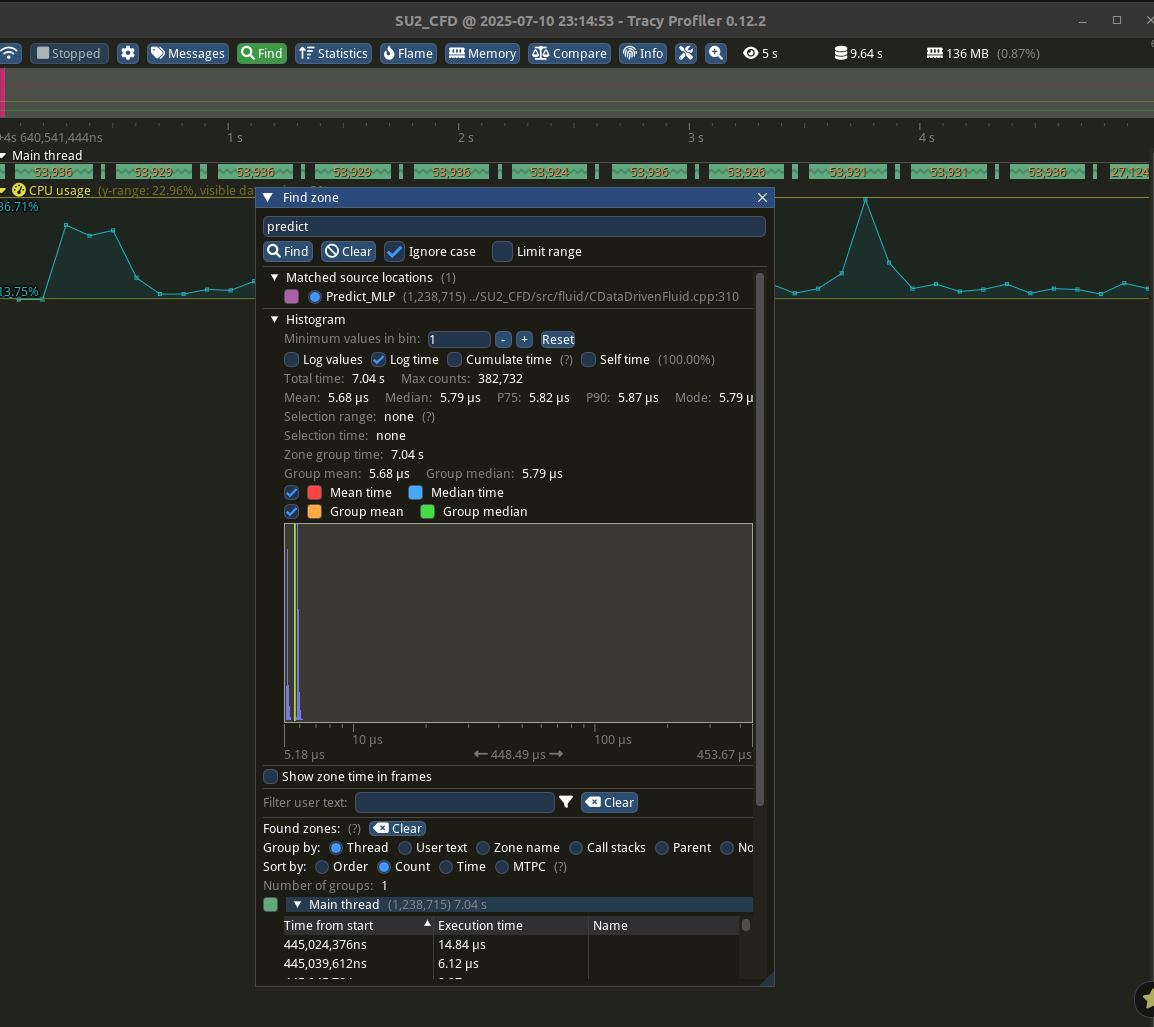
<p><img src="/images/tracy_output.png" alt="Tracy GUI" /></p>

<h2 id="conclusion">Conclusion</h2>

<p>Using Tracy to profile my SU2 code has been an important step in my GSoC project. Its low overhead and real-time visualization have enables me to pinpoint performance issues with precision. By following the steps outlined above, you can integrate Tracy into your own SU2 projects and leverage its capabilities for performance analysis. For advanced features and troubleshooting, consult the <a href="https://github.com/wolfpld/tracy/releases/latest/download/tracy.pdf">Tracy documentation</a>. I also came across this <a href="https://markhedleyjones.com/notes/using-tracy-profiler">blog</a>, which served as a helpful starting point for understanding the Tracy profiler and getting it up and running.</p>]]></content><author><name>Divyaprakash</name><email>divyaprakash.phd@gmail.com</email></author><category term="GSoC" /><category term="GSoC" /><category term="Profiling" /><category term="tracy" /><category term="meson" /><summary type="html"><![CDATA[In this blog post, I explore integrating Tracy Profiler with SU2 for my Google Summer of Code project. I detail the setup of Tracy’s client and server, instrumenting functions, and leveraging its low-overhead, real-time visualization to optimize performance in SU2 simulations.]]></summary></entry><entry><title type="html">GSoC Week 2: Investigating Performance Bottlenecks in SU2</title><link href="https://dpcfd.com/posts/2025/06/gsoc-week-2/" rel="alternate" type="text/html" title="GSoC Week 2: Investigating Performance Bottlenecks in SU2" /><published>2025-07-05T00:00:00+00:00</published><updated>2025-07-05T00:00:00+00:00</updated><id>https://dpcfd.com/posts/2025/06/gsoc-week-2</id><content type="html" xml:base="https://dpcfd.com/posts/2025/06/gsoc-week-2/"><![CDATA[<h2 id="tldr">TL;DR</h2>

<p>To optimize performance in a large codebase like SU2, you must:</p>

<ol>
  <li>Identify performance bottlenecks using profiling tools.</li>
  <li>Locate the exact function(s) consuming the most time.</li>
  <li>Understand their internals using call graphs.</li>
  <li>Micro-measure time-critical regions.</li>
  <li>Apply improvements and verify the impact.</li>
</ol>

<p>This post focuses on profiling and visualizing the call graph using <code class="language-plaintext highlighter-rouge">valgrind</code> and <code class="language-plaintext highlighter-rouge">kcachegrind</code>.</p>

<hr />

<h2 id="introduction">Introduction</h2>

<p>When working on performance-critical applications like SU2, identifying and addressing bottlenecks is essential. While this blog uses SU2 as the context, the process discussed here is applicable to most large C++ projects.</p>

<h3 id="profiling-with-gprof">Profiling with <code class="language-plaintext highlighter-rouge">gprof</code></h3>

<p>SU2 supports profiling via <code class="language-plaintext highlighter-rouge">gprof</code>. To enable it, compile SU2 with <code class="language-plaintext highlighter-rouge">-Denable-gprof=true</code>.</p>

<div class="language-bash highlighter-rouge"><div class="highlight"><pre class="highlight"><code>./meson.py build_gsoc <span class="nt">-Denable-pywrapper</span><span class="o">=</span><span class="nb">true</span> <span class="nt">-Denable-mlpcpp</span><span class="o">=</span><span class="nb">true</span> <span class="nt">-Denable-gprof</span><span class="o">=</span><span class="nb">true</span> <span class="nt">--prefix</span><span class="o">=</span>/home/divyaprakash/SU2_DP
 ./ninja <span class="nt">-C</span> build_gsoc <span class="nb">install</span>
</code></pre></div></div>

<p>Then run the desired executable normally:</p>

<div class="language-bash highlighter-rouge"><div class="highlight"><pre class="highlight"><code>/path/to/binary/SU2_CFD config.cfg
</code></pre></div></div>

<p>This generates a <code class="language-plaintext highlighter-rouge">gmon.out</code> file in the working directory. Analyze it using:</p>

<div class="language-bash highlighter-rouge"><div class="highlight"><pre class="highlight"><code>gprof /path/to/binary/SU2_CFD <span class="o">&gt;</span> analysis.txt
</code></pre></div></div>

<h3 id="interpreting-the-output">Interpreting the Output</h3>

<p>In <code class="language-plaintext highlighter-rouge">analysis.txt</code>, the <em>flat profile</em> lists the most time-consuming functions:</p>

<div class="language-plaintext highlighter-rouge"><div class="highlight"><pre class="highlight"><code>time   seconds   seconds    calls  Ts/call  Ts/call  name    
  6  47.43      2.03     2.03                             MLPToolbox::CNeuralNetwork::Predict(std::vector&lt;double, std::allocator&lt;double&gt; &gt;&amp;)
</code></pre></div></div>

<p>Here, <code class="language-plaintext highlighter-rouge">MLPToolbox::CNeuralNetwork::Predict</code> emerges as the top time consumer. However, it may not be straightforward to locate this function in the source code directly, especially in a large project like SU2.</p>

<h3 id="finding-the-function-in-source-code">Finding the Function in Source Code</h3>

<p>To locate the function in context, use <code class="language-plaintext highlighter-rouge">gdb</code>:</p>

<div class="language-bash highlighter-rouge"><div class="highlight"><pre class="highlight"><code>gdb <span class="nt">--args</span> ~/SU2_DP/serial/bin/SU2_CFD config_NICFD_PINN.cfg
<span class="o">(</span>gdb<span class="o">)</span> <span class="nb">break </span>MLPToolbox::CNeuralNetwork::Predict
<span class="o">(</span>gdb<span class="o">)</span> run
</code></pre></div></div>

<p>This places a breakpoint and reveals the exact location of the function in the source code. In my case the following output was obtained which pointed to exact location.</p>

<div class="language-bash highlighter-rouge"><div class="highlight"><pre class="highlight"><code>Breakpoint 1, MLPToolbox::CNeuralNetwork::Predict <span class="o">(</span><span class="nv">this</span><span class="o">=</span>0x209d500, <span class="nv">inputs</span><span class="o">=</span>std::vector of length 2, capacity 2 <span class="o">=</span> <span class="o">{</span>...<span class="o">})</span> at ../SU2_CFD/src/fluid/../../include/fluid/../../../subprojects/MLPCpp/include/CNeuralNetwork.hpp:651
</code></pre></div></div>

<h3 id="going-beyond-understanding-the-call-graph">Going Beyond: Understanding the Call Graph</h3>

<p>Profiling alone doesn’t reveal <em>why</em> a function is expensive. The time could be due to the function itself or its callees. While <code class="language-plaintext highlighter-rouge">gprof</code> is supposed to provide call graph information, it did not in this case—possibly due to function inlining or compiler optimizations, which are known to interfere with accurate profiling output.</p>

<p>This is where <code class="language-plaintext highlighter-rouge">valgrind</code> and <code class="language-plaintext highlighter-rouge">kcachegrind</code> come into picture.</p>

<hr />

<h2 id="visualizing-the-call-graph-with-valgrind--kcachegrind">Visualizing the Call Graph with Valgrind + KCachegrind</h2>

<p>To analyze function calls and their time share:</p>

<div class="language-bash highlighter-rouge"><div class="highlight"><pre class="highlight"><code>valgrind <span class="nt">--tool</span><span class="o">=</span>callgrind ~/SU2_DP/serial/bin/SU2_CFD config_NICFD_PINN.cfg
</code></pre></div></div>

<p>This creates an output file such as <code class="language-plaintext highlighter-rouge">callgrind.out.50464</code>. You can visualize it with:</p>

<div class="language-bash highlighter-rouge"><div class="highlight"><pre class="highlight"><code>kcachegrind callgrind.out.50464
</code></pre></div></div>

<h3 id="interpreting-the-call-graph">Interpreting the Call Graph</h3>

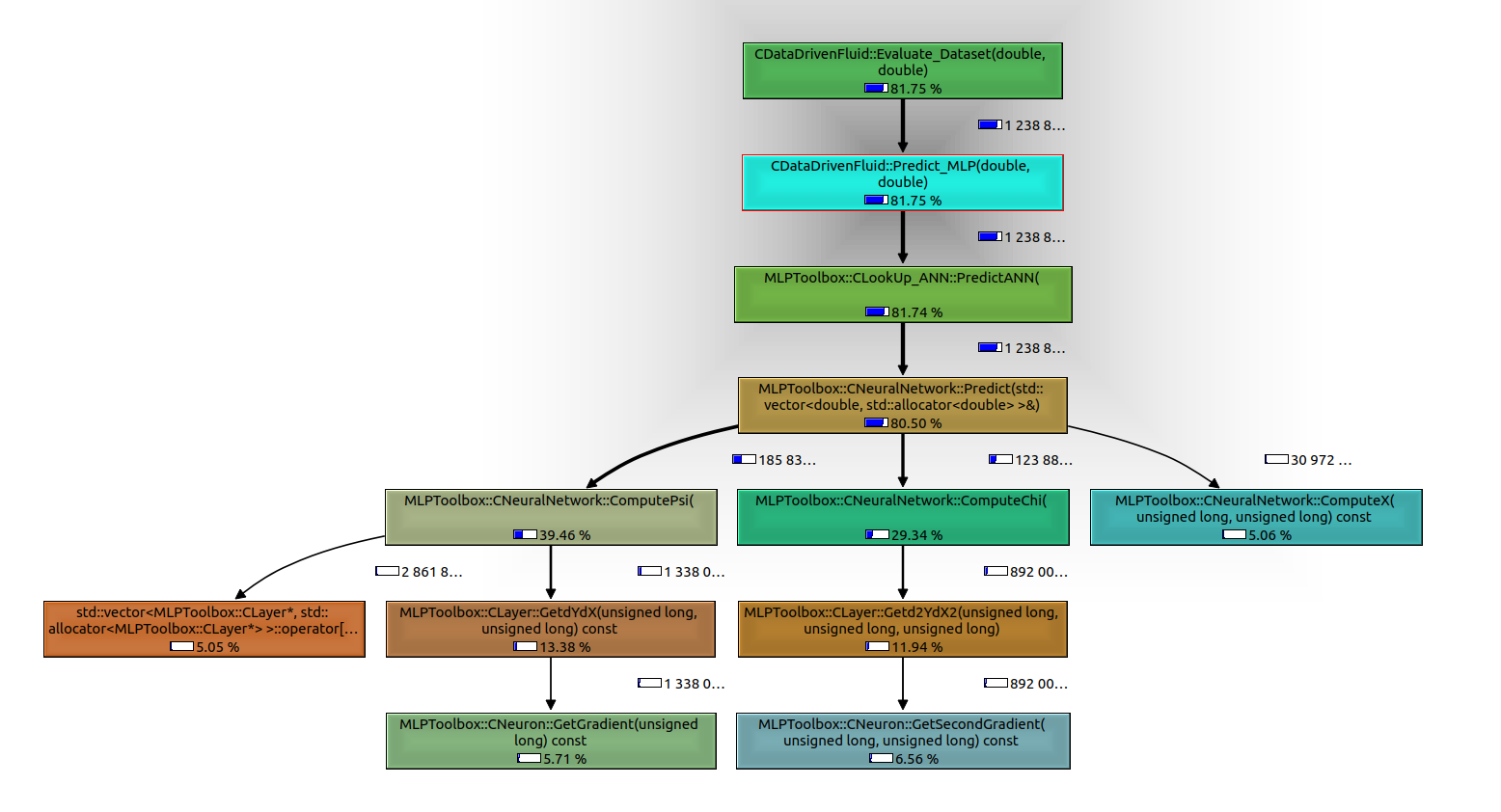
<p>Using <code class="language-plaintext highlighter-rouge">kcachegrind</code>, we navigate the call graph and observe that the <code class="language-plaintext highlighter-rouge">Predict</code> function spends most of its time in two callees:</p>

<ul>
  <li><code class="language-plaintext highlighter-rouge">ComputePsi</code></li>
  <li><code class="language-plaintext highlighter-rouge">ComputeChi</code></li>
</ul>

<p><img src="/images/call_graph.png" alt="Call Graph" /></p>

<p>This pinpointed the actual performance bottleneck, enabling targeted optimization efforts.</p>

<hr />

<h2 id="final-notes">Final Notes</h2>

<p>While <code class="language-plaintext highlighter-rouge">valgrind</code> and <code class="language-plaintext highlighter-rouge">kcachegrind</code> are powerful tools for analyzing code structure and bottlenecks, they are not ideal for runtime performance measurements due to the overhead introduced. In future posts, I will explore <code class="language-plaintext highlighter-rouge">tracy</code>, a high-performance real-time profiler that provides detailed runtime metrics with minimal overhead.</p>

<p>To dig deeper into <code class="language-plaintext highlighter-rouge">kcachegrind</code>, refer to the <a href="https://kcachegrind.github.io/html/Home.html">official documentation</a>.</p>

<hr />]]></content><author><name>Divyaprakash</name><email>divyaprakash.phd@gmail.com</email></author><category term="GSoC" /><category term="GSoC" /><category term="Profiling" /><category term="Valgrind" /><category term="Kcachegrind" /><summary type="html"><![CDATA[This post explores how I used gprof, valgrind, and kcachegrind to identify and analyze performance bottlenecks in SU2, focusing on the neural network module. The approach is generalizable to other large C++ projects.]]></summary></entry><entry><title type="html">GSoC Week 1: Setting up the Development Environment for Productive Coding</title><link href="https://dpcfd.com/posts/2025/06/gsoc-week-1/" rel="alternate" type="text/html" title="GSoC Week 1: Setting up the Development Environment for Productive Coding" /><published>2025-06-04T00:00:00+00:00</published><updated>2025-06-04T00:00:00+00:00</updated><id>https://dpcfd.com/posts/2025/06/gsoc-week-1</id><content type="html" xml:base="https://dpcfd.com/posts/2025/06/gsoc-week-1/"><![CDATA[<h1 id="streamlining-open-source-contributions-in-c-with-github-and-vs-code">Streamlining Open-Source Contributions in C++ with GitHub and VS Code</h1>

<p>Getting started with contributing to a large-scale open-source project can feel daunting—especially if you’re new to collaborative software development, C++, or tools like GitHub. This guide is intended for beginners, like myself, who are taking their first steps into this space, such as through Google Summer of Code (GSoC) or other contribution opportunities.</p>

<p>The practices and tools shared here will help you efficiently navigate large C++ projects, whether your goal is to fix documentation, add new features, or improve performance.</p>

<hr />

<h2 id="1-github-workflow-fork-clone-branch">1. GitHub Workflow: Fork, Clone, Branch</h2>

<p>To contribute to a GitHub-hosted project, start by <strong>forking</strong> the repository. This creates a personal copy where you can make changes safely.</p>

<h3 id="steps">Steps:</h3>

<ul>
  <li>
    <p><strong>Fork the repo</strong> from the GitHub website.</p>
  </li>
  <li>
    <p><strong>Clone it</strong> to your local system:</p>

    <div class="language-bash highlighter-rouge"><div class="highlight"><pre class="highlight"><code>git clone https://github.com/your-username/project-name.git
<span class="nb">cd </span>project-name
</code></pre></div>    </div>
  </li>
  <li>
    <p><strong>Add the original repo as the upstream</strong> to keep your fork up to date:</p>

    <div class="language-bash highlighter-rouge"><div class="highlight"><pre class="highlight"><code>git remote add upstream https://github.com/original-owner/project-name.git
</code></pre></div>    </div>

    <p>This allows you to fetch updates later using:</p>

    <div class="language-bash highlighter-rouge"><div class="highlight"><pre class="highlight"><code>git fetch upstream
git merge upstream/main  <span class="c"># or 'develop', depending on the repo</span>
</code></pre></div>    </div>
  </li>
  <li>
    <p><strong>Create a dedicated branch</strong> for your work:</p>

    <div class="language-bash highlighter-rouge"><div class="highlight"><pre class="highlight"><code>git checkout <span class="nt">-b</span> feature-branch
git push <span class="nt">-u</span> origin feature-branch
</code></pre></div>    </div>
  </li>
</ul>

<p>Using <code class="language-plaintext highlighter-rouge">-u</code> links your local branch to the remote one, so future <code class="language-plaintext highlighter-rouge">git push</code> commands will automatically target the correct destination.</p>

<hr />

<h2 id="2-ssh-keys-avoid-typing-credentials-every-time">2. SSH Keys: Avoid Typing Credentials Every Time</h2>

<p>GitHub recommends setting up <strong>SSH-based authentication</strong> for secure and password-free interaction.</p>

<h3 id="steps-1">Steps:</h3>

<ol>
  <li>
    <p>Generate a new SSH key:</p>

    <div class="language-bash highlighter-rouge"><div class="highlight"><pre class="highlight"><code>ssh-keygen <span class="nt">-t</span> ed25519 <span class="nt">-C</span> <span class="s2">"your_email@example.com"</span>
</code></pre></div>    </div>
  </li>
  <li>
    <p>Add the private key to the agent:</p>

    <div class="language-bash highlighter-rouge"><div class="highlight"><pre class="highlight"><code><span class="nb">eval</span> <span class="s2">"</span><span class="si">$(</span>ssh-agent <span class="nt">-s</span><span class="si">)</span><span class="s2">"</span>
ssh-add ~/.ssh/id_ed25519
</code></pre></div>    </div>
  </li>
  <li>
    <p>Add the public key to GitHub:</p>

    <div class="language-bash highlighter-rouge"><div class="highlight"><pre class="highlight"><code><span class="nb">cat</span> ~/.ssh/id_ed25519.pub
</code></pre></div>    </div>

    <p>Copy and paste this into <em>GitHub &gt; Settings &gt; SSH and GPG keys</em>.</p>
  </li>
</ol>

<p>If you cloned using HTTPS and want to switch to SSH:</p>

<ol>
  <li>
    <p><strong>Update the remote URL:</strong></p>

    <div class="language-bash highlighter-rouge"><div class="highlight"><pre class="highlight"><code>git remote set-url origin git@github.com:your-username/project-name.git
</code></pre></div>    </div>
  </li>
  <li>
    <p><strong>Verify it:</strong></p>

    <div class="language-bash highlighter-rouge"><div class="highlight"><pre class="highlight"><code>git remote <span class="nt">-v</span>
</code></pre></div>    </div>

    <p>It should now show the SSH URL:</p>

    <div class="language-plaintext highlighter-rouge"><div class="highlight"><pre class="highlight"><code>origin  git@github.com:your-username/project-name.git
</code></pre></div>    </div>
  </li>
</ol>

<p>Now <code class="language-plaintext highlighter-rouge">git push</code> will use SSH without prompting for credentials.</p>

<hr />

<h2 id="3-choosing-an-editor-why-i-recommend-vs-code">3. Choosing an Editor: Why I Recommend VS Code</h2>

<p>While some experienced developers might opt for terminal-based editors like <code class="language-plaintext highlighter-rouge">vim</code> or <code class="language-plaintext highlighter-rouge">emacs</code>, I found <strong>Visual Studio Code (VS Code)</strong> to be a practical and user-friendly choice, especially when dealing with large C++ codebases.</p>

<h3 id="recommended-extensions">Recommended Extensions:</h3>

<ul>
  <li><strong>C/C++ (Microsoft)</strong>: Provides IntelliSense and debugging support.</li>
  <li><strong>CMake Tools</strong>: For configuring and building CMake-based projects.</li>
  <li><strong>CodeLLDB or C++ GDB</strong>: Enables powerful in-editor debugging.</li>
  <li><strong>GitLens</strong>: Adds powerful Git features inside VS Code.</li>
</ul>

<hr />

<h2 id="4-automating-builds-with-tasksjson">4. Automating Builds with <code class="language-plaintext highlighter-rouge">tasks.json</code></h2>

<p>Instead of manually switching to a terminal and typing build commands each time, you can define <strong>build tasks</strong> in VS Code using <code class="language-plaintext highlighter-rouge">tasks.json</code>. This file allows you to run common shell commands from within the editor.</p>

<h3 id="example">Example:</h3>

<div class="language-json highlighter-rouge"><div class="highlight"><pre class="highlight"><code><span class="p">{</span><span class="w">
  </span><span class="nl">"label"</span><span class="p">:</span><span class="w"> </span><span class="s2">"Build Project"</span><span class="p">,</span><span class="w">
  </span><span class="nl">"type"</span><span class="p">:</span><span class="w"> </span><span class="s2">"shell"</span><span class="p">,</span><span class="w">
  </span><span class="nl">"command"</span><span class="p">:</span><span class="w"> </span><span class="s2">"ninja -C build install"</span><span class="p">,</span><span class="w">
  </span><span class="nl">"group"</span><span class="p">:</span><span class="w"> </span><span class="p">{</span><span class="w">
    </span><span class="nl">"kind"</span><span class="p">:</span><span class="w"> </span><span class="s2">"build"</span><span class="p">,</span><span class="w">
    </span><span class="nl">"isDefault"</span><span class="p">:</span><span class="w"> </span><span class="kc">true</span><span class="w">
  </span><span class="p">}</span><span class="w">
</span><span class="p">}</span><span class="w">
</span></code></pre></div></div>

<p>This configuration builds your project using the <code class="language-plaintext highlighter-rouge">ninja</code> build system (or <code class="language-plaintext highlighter-rouge">make</code>, depending on your setup). You can trigger it by pressing <code class="language-plaintext highlighter-rouge">Ctrl+Shift+B</code> in VS Code.</p>

<p>Your provided <code class="language-plaintext highlighter-rouge">tasks.json</code> is set up to install the project after building it:</p>

<div class="language-json highlighter-rouge"><div class="highlight"><pre class="highlight"><code><span class="nl">"command"</span><span class="p">:</span><span class="w"> </span><span class="s2">"ninja -C build_serial install"</span><span class="w">
</span></code></pre></div></div>

<p>Adjust the build directory name as needed for different configurations.</p>

<hr />

<h2 id="5-debugging-with-gdb-and-launchjson">5. Debugging with GDB and <code class="language-plaintext highlighter-rouge">launch.json</code></h2>

<p>For larger projects, simple <code class="language-plaintext highlighter-rouge">print</code> statements quickly become inefficient. A proper <strong>debugger</strong> helps you step through the code, inspect variables, and set breakpoints.</p>

<h3 id="launchjson-helps-you"><code class="language-plaintext highlighter-rouge">launch.json</code> helps you:</h3>

<ul>
  <li>Specify the binary to debug.</li>
  <li>Pass runtime arguments (e.g., config files).</li>
  <li>Set the working directory.</li>
  <li>Choose GDB or LLDB as the backend.</li>
</ul>

<p>Here’s a simplified version inspired by your setup:</p>

<div class="language-json highlighter-rouge"><div class="highlight"><pre class="highlight"><code><span class="p">{</span><span class="w">
  </span><span class="nl">"name"</span><span class="p">:</span><span class="w"> </span><span class="s2">"Debug Project"</span><span class="p">,</span><span class="w">
  </span><span class="nl">"type"</span><span class="p">:</span><span class="w"> </span><span class="s2">"cppdbg"</span><span class="p">,</span><span class="w">
  </span><span class="nl">"request"</span><span class="p">:</span><span class="w"> </span><span class="s2">"launch"</span><span class="p">,</span><span class="w">
  </span><span class="nl">"program"</span><span class="p">:</span><span class="w"> </span><span class="s2">"${workspaceFolder}/build/bin/my_executable"</span><span class="p">,</span><span class="w">
  </span><span class="nl">"args"</span><span class="p">:</span><span class="w"> </span><span class="p">[</span><span class="s2">"input.cfg"</span><span class="p">],</span><span class="w">
  </span><span class="nl">"cwd"</span><span class="p">:</span><span class="w"> </span><span class="s2">"${workspaceFolder}/test_cases/my_case"</span><span class="p">,</span><span class="w">
  </span><span class="nl">"stopAtEntry"</span><span class="p">:</span><span class="w"> </span><span class="kc">false</span><span class="p">,</span><span class="w">
  </span><span class="nl">"MIMode"</span><span class="p">:</span><span class="w"> </span><span class="s2">"gdb"</span><span class="p">,</span><span class="w">
  </span><span class="nl">"externalConsole"</span><span class="p">:</span><span class="w"> </span><span class="kc">false</span><span class="w">
</span><span class="p">}</span><span class="w">
</span></code></pre></div></div>

<p>This allows debugging directly within VS Code using breakpoints and variable inspection, without leaving the editor.</p>

<p>Your custom <code class="language-plaintext highlighter-rouge">launch.json</code> even supports debugging with MPI-enabled programs—this is very helpful for parallel simulations.</p>

<hr />

<h2 id="6-profiling-with-gprof">6. Profiling with <code class="language-plaintext highlighter-rouge">gprof</code></h2>

<p>After ensuring your code works, it’s useful to measure its performance. <strong><code class="language-plaintext highlighter-rouge">gprof</code></strong> is a lightweight tool for profiling C++ applications compiled with <code class="language-plaintext highlighter-rouge">-pg</code>.</p>

<h3 id="steps-2">Steps:</h3>

<ol>
  <li>
    <p><strong>Compile with profiling enabled</strong>:
Add <code class="language-plaintext highlighter-rouge">-pg</code> to both compile and link flags.</p>
  </li>
  <li>
    <p><strong>Run the program</strong> (avoid wrappers like Python when profiling):</p>

    <div class="language-bash highlighter-rouge"><div class="highlight"><pre class="highlight"><code>./my_executable input.cfg
</code></pre></div>    </div>
  </li>
  <li>
    <p><strong>Analyze results</strong>:</p>

    <div class="language-bash highlighter-rouge"><div class="highlight"><pre class="highlight"><code>gprof ./my_executable gmon.out <span class="o">&gt;</span> analysis.txt
</code></pre></div>    </div>

    <p>This will generate a text file detailing function call times and frequencies, helping you identify bottlenecks.</p>
  </li>
</ol>

<hr />

<h2 id="7-maintaining-multiple-builds">7. Maintaining Multiple Builds</h2>

<p>For robust development, maintain separate build directories for different purposes:</p>

<table>
  <thead>
    <tr>
      <th>Build Type</th>
      <th>Flags</th>
      <th>Purpose</th>
    </tr>
  </thead>
  <tbody>
    <tr>
      <td><strong>Debug</strong></td>
      <td><code class="language-plaintext highlighter-rouge">-g -O0</code></td>
      <td>Use with GDB to step through crashes or logic issues.</td>
    </tr>
    <tr>
      <td><strong>Optimized</strong></td>
      <td><code class="language-plaintext highlighter-rouge">-O2</code> or <code class="language-plaintext highlighter-rouge">-O3</code></td>
      <td>Measure real-world performance.</td>
    </tr>
    <tr>
      <td><strong>Profiling</strong></td>
      <td><code class="language-plaintext highlighter-rouge">-pg</code></td>
      <td>Collect runtime statistics using <code class="language-plaintext highlighter-rouge">gprof</code>.</td>
    </tr>
  </tbody>
</table>

<p>Use separate build directories (<code class="language-plaintext highlighter-rouge">build_debug</code>, <code class="language-plaintext highlighter-rouge">build_release</code>, <code class="language-plaintext highlighter-rouge">build_profile</code>) with different CMake options or toolchain files.</p>

<hr />

<h2 id="final-thoughts">Final Thoughts</h2>

<p>With this setup, you can:</p>

<ul>
  <li>Organize your GitHub workflow.</li>
  <li>Edit and build efficiently within VS Code.</li>
  <li>Debug with breakpoints and variable inspection.</li>
  <li>Profile performance bottlenecks.</li>
  <li>Push changes back to your forked repository.</li>
</ul>

<p>The next step in your contribution journey is to submit a <strong>pull request (PR)</strong>—a topic I’ll cover in a future post once I’ve gone through the process myself.</p>]]></content><author><name>Divyaprakash</name><email>divyaprakash.phd@gmail.com</email></author><category term="GSoC" /><category term="GSoC" /><category term="Git" /><category term="C++" /><summary type="html"><![CDATA[A step-by-step guide for beginners to set up a modern development environment for contributing to large open-source C++ projects using GitHub, VS Code, GDB, and gprof.]]></summary></entry><entry><title type="html">GSoC Week 0: Getting Started with Stitching SU2</title><link href="https://dpcfd.com/posts/2025/05/gsoc-week-0/" rel="alternate" type="text/html" title="GSoC Week 0: Getting Started with Stitching SU2" /><published>2025-05-24T00:00:00+00:00</published><updated>2025-05-24T00:00:00+00:00</updated><id>https://dpcfd.com/posts/2025/05/gsoc-week-0</id><content type="html" xml:base="https://dpcfd.com/posts/2025/05/gsoc-week-0/"><![CDATA[<h1 id="contributing-to-a-submodule-in-a-larger-project-a-case-study-with-mlpcpp-in-su2">Contributing to a Submodule in a Larger Project: A Case Study with MLPCpp in SU2</h1>

<h2 id="introduction">Introduction</h2>

<p>When contributing to an open-source project that employs <strong>submodules</strong>, it is crucial to adopt a workflow that ensures contributions are effectively managed and integrated. This article outlines a recommended approach for contributing to a submodule within a larger repository, using the example of <strong>MLPCpp</strong> in the <strong>SU2</strong> framework. It also includes technical steps for integrating modified submodules using symbolic links and Meson.</p>

<hr />

<h2 id="what-are-submodules">What Are Submodules?</h2>

<p>In Git, a <strong>submodule</strong> is a repository embedded within another repository (the “superproject”). It allows a project to include and track an external repository at a specific commit. Submodules are commonly used when a project depends on external code but wants to maintain a fixed version or revision of that dependency.</p>

<p>For instance, in the <strong>SU2</strong> project, <strong>MLPCpp</strong> is included as a submodule in the <code class="language-plaintext highlighter-rouge">subprojects/MLPCpp</code> directory. This means that SU2 references a specific commit of the MLPCpp repository, and updates to the submodule are controlled explicitly.</p>

<hr />

<h2 id="key-considerations">Key Considerations</h2>

<p>When planning to modify <strong>MLPCpp</strong>, which is integrated as a submodule within SU2, an important question arises:
<strong>Should the entire SU2 repository be forked, or should the fork be limited to the submodule (MLPCpp)?</strong></p>

<p>Additionally, after installing and building SU2 (for example, using the Meson build system with <code class="language-plaintext highlighter-rouge">-Denable-mlpcpp=true</code>), it is natural to wonder whether modifications can be made directly within the submodule directory (<code class="language-plaintext highlighter-rouge">subprojects/MLPCpp</code>).</p>

<hr />

<h2 id="recommended-approach">Recommended Approach</h2>

<p>The recommended strategy is to <strong>fork and develop only the MLPCpp submodule</strong>, rather than the entire SU2 repository. This approach maintains clear version control boundaries and reduces the complexity of managing unrelated components.</p>

<p>Key steps include:</p>

<ol>
  <li>
    <p><strong>Fork the MLPCpp repository</strong> independently. This isolates changes to the specific component of interest, making them easier to test, manage, and contribute back to the upstream project.</p>
  </li>
  <li>
    <p><strong>Clone the forked MLPCpp repository locally and create a dedicated feature branch</strong> (it’s a best practice to keep the main branch of your fork clean and in sync with the upstream repository). This approach simplifies pulling updates from upstream, avoids merge conflicts, and provides a stable base for creating feature branches.</p>
  </li>
  <li>
    <p>To integrate and test these changes within the SU2 environment, <strong>replace the submodule directory in SU2 with a symbolic link</strong> or configure Meson to use the local version of MLPCpp. This allows testing the modified MLPCpp code without impacting SU2’s main repository or its submodule configuration.</p>
  </li>
  <li>
    <p>Once the changes have been verified, <strong>submit a pull request to the MLPCpp repository</strong>. This ensures that contributions are cleanly integrated into the upstream project.</p>
  </li>
</ol>

<hr />

<h2 id="advantages-of-this-approach">Advantages of This Approach</h2>

<ul>
  <li><strong>Clear version control</strong>: Isolating submodule changes avoids unintended modifications to the larger project and makes it easier to track specific contributions.</li>
  <li><strong>Reduced risk of overwrites</strong>: Updates to the parent repository (SU2) will not overwrite changes made directly in the submodule directory.</li>
  <li><strong>Streamlined collaboration</strong>: Contributing to the submodule repository ensures that the changes are properly scoped and can be easily shared with the community.</li>
  <li><strong>Flexible testing</strong>: This approach allows switching between different versions of the submodule during development and testing, independent of the main repository.</li>
</ul>

<hr />

<h2 id="step-by-step-guide-integrating-a-modified-submodule-mlpcpp-into-su2">Step-by-Step Guide: Integrating a Modified Submodule (MLPCpp) into SU2</h2>

<p>This guide explains how to configure the <strong>SU2</strong> build system to use a <strong>local version of MLPCpp</strong> that contains your modifications. This approach allows you to test changes in the submodule independently of the version tracked by SU2.</p>

<h3 id="prerequisites">Prerequisites</h3>

<ul>
  <li>A <strong>forked and cloned MLPCpp repository</strong> with your changes (e.g., at <code class="language-plaintext highlighter-rouge">/home/youruser/dev/MLPCpp-modified</code>).</li>
  <li>A local <strong>SU2</strong> repository (e.g., at <code class="language-plaintext highlighter-rouge">/home/youruser/dev/SU2</code>) with a successful initial build.</li>
  <li><strong>Meson</strong> and <strong>Ninja</strong> installed.</li>
</ul>

<hr />

<h3 id="1-replace-the-submodule-reference-with-a-local-path">1. Replace the Submodule Reference with a Local Path</h3>

<p>By default, SU2’s <code class="language-plaintext highlighter-rouge">subprojects/MLPCpp</code> points to a specific commit in the official MLPCpp repository. To override this:</p>

<ol>
  <li><strong>Backup the current MLPCpp submodule</strong> (optional but recommended):</li>
</ol>

<div class="language-bash highlighter-rouge"><div class="highlight"><pre class="highlight"><code><span class="nb">cd</span> /home/youruser/dev/SU2/subprojects
<span class="nb">mv </span>MLPCpp MLPCpp_backup
</code></pre></div></div>

<ol>
  <li><strong>Create a symbolic link to your modified MLPCpp</strong>:</li>
</ol>

<div class="language-bash highlighter-rouge"><div class="highlight"><pre class="highlight"><code><span class="nb">ln</span> <span class="nt">-s</span> /home/youruser/dev/MLPCpp-modified MLPCpp
</code></pre></div></div>

<p><strong>Note on Symbolic Links</strong>:<br />
A symbolic link (symlink) is a file that acts as a reference to another file or directory. In this case, the symlink <code class="language-plaintext highlighter-rouge">MLPCpp</code> points to your local modified repository. This ensures that changes in <code class="language-plaintext highlighter-rouge">/home/youruser/dev/MLPCpp-modified</code> are reflected in SU2’s build without altering the original submodule structure.</p>

<hr />

<h3 id="2-reconfigure-and-rebuild-su2-with-meson">2. Reconfigure and Rebuild SU2 with Meson</h3>

<ol>
  <li><strong>Navigate to the SU2 build directory</strong> (use the same directory as your initial build or create a new one):</li>
</ol>

<div class="language-bash highlighter-rouge"><div class="highlight"><pre class="highlight"><code><span class="nb">cd</span> /home/youruser/dev/SU2/build
</code></pre></div></div>

<ol>
  <li><strong>Reconfigure the build</strong> (this picks up the modified submodule).<br />
<strong>Correction</strong>: Meson requires the build directory to be separate from the source directory. Run:</li>
</ol>

<div class="language-bash highlighter-rouge"><div class="highlight"><pre class="highlight"><code>meson setup <span class="nt">--reconfigure</span> ~/SU2
</code></pre></div></div>

<p>This tells Meson:</p>
<ul>
  <li><code class="language-plaintext highlighter-rouge">--reconfigure</code> → Reconfigure an existing build.</li>
  <li><code class="language-plaintext highlighter-rouge">~/SU2</code> → Use this as the <strong>source directory</strong> (SU2’s codebase).</li>
  <li><code class="language-plaintext highlighter-rouge">.</code> → Use the <strong>current directory</strong> (which should be your separate build directory) as the build output directory.</li>
</ul>

<ol>
  <li><strong>Build SU2 with the modified submodule</strong>:</li>
</ol>

<div class="language-bash highlighter-rouge"><div class="highlight"><pre class="highlight"><code>./ninja <span class="nt">-C</span> build <span class="nb">install</span>
</code></pre></div></div>

<hr />

<h3 id="3-testing-your-changes">3. Testing Your Changes</h3>

<p>Once built, use your modified SU2 executable (from <code class="language-plaintext highlighter-rouge">build/bin/SU2_CFD</code>) with configurations that invoke <strong>MLPCpp</strong> features. This ensures that SU2 is running with your modified submodule code.</p>

<hr />

<h2 id="why-this-approach-works">Why This Approach Works</h2>

<ul>
  <li><strong>Safe Testing</strong>: You avoid accidental changes to the main SU2 repository.</li>
  <li><strong>Submodule Independence</strong>: Your local version of MLPCpp can evolve separately from SU2’s tracked version.</li>
  <li><strong>Reproducibility</strong>: You can easily switch between your modified MLPCpp and the official version by replacing the symlink.</li>
</ul>

<hr />

<h2 id="conclusion">Conclusion</h2>

<p>When contributing to a submodule within a larger open-source project, such as <strong>MLPCpp</strong> within <strong>SU2</strong>, the recommended workflow is to fork and modify the submodule directly. Use symbolic links or build system overrides to integrate and test these changes with the main project. This approach ensures a clean, maintainable development workflow and facilitates contribution back to the original project.</p>]]></content><author><name>Divyaprakash</name><email>divyaprakash.phd@gmail.com</email></author><category term="GSoC" /><category term="GSoC" /><category term="Git" /><category term="C++" /><summary type="html"><![CDATA[Week 0 of GSoC: Community Bonding, Setting Up the SU2 Development Environment, and Exploring the Codebase]]></summary></entry><entry><title type="html">Understanding Proxy Configuration Methods in Ubuntu: A Comprehensive Guide</title><link href="https://dpcfd.com/posts/2025/02/blog-post-8/" rel="alternate" type="text/html" title="Understanding Proxy Configuration Methods in Ubuntu: A Comprehensive Guide" /><published>2025-02-16T00:00:00+00:00</published><updated>2025-02-16T00:00:00+00:00</updated><id>https://dpcfd.com/posts/2025/02/blog-post-8</id><content type="html" xml:base="https://dpcfd.com/posts/2025/02/blog-post-8/"><![CDATA[<p>Setting up proxy servers in Ubuntu can be done through multiple approaches, each serving different purposes and affecting different parts of the system. In this guide, we’ll explore all available methods, understand their differences, and learn how to configure proxy settings for specific applications.</p>

<h2 id="core-proxy-configuration-methods">Core Proxy Configuration Methods</h2>

<h3 id="1-environment-variables-in-etcenvironment">1. Environment Variables in /etc/environment</h3>

<p>The <code class="language-plaintext highlighter-rouge">/etc/environment</code> file is one of the most fundamental ways to set system-wide proxy settings. This file is read at boot time and affects all users on the system. When setting up your proxy, you’ll need to replace the port number (3128 in this example) with the specific port your proxy server uses.</p>

<div class="language-bash highlighter-rouge"><div class="highlight"><pre class="highlight"><code><span class="nv">http_proxy</span><span class="o">=</span><span class="s2">"http://proxy.example.com:3128"</span>
<span class="nv">https_proxy</span><span class="o">=</span><span class="s2">"http://proxy.example.com:3128"</span>
<span class="nv">ftp_proxy</span><span class="o">=</span><span class="s2">"http://proxy.example.com:3128"</span>
<span class="nv">no_proxy</span><span class="o">=</span><span class="s2">"localhost,127.0.0.1,::1"</span>

<span class="nv">HTTP_PROXY</span><span class="o">=</span><span class="s2">"http://proxy.example.com:3128"</span>
<span class="nv">HTTPS_PROXY</span><span class="o">=</span><span class="s2">"http://proxy.example.com:3128"</span>
<span class="nv">FTP_PROXY</span><span class="o">=</span><span class="s2">"http://proxy.example.com:3128"</span>
<span class="nv">NO_PROXY</span><span class="o">=</span><span class="s2">"localhost,127.0.0.1,::1"</span>
</code></pre></div></div>

<p>The no_proxy variable is particularly important as it tells your system which addresses should bypass the proxy server. This includes localhost and your local network addresses, ensuring direct communication for internal resources.</p>

<p>Key characteristics:</p>
<ul>
  <li>System-wide configuration affecting all users</li>
  <li>Loaded very early in the boot process</li>
  <li>Changes require a system reboot or re-login</li>
  <li>Both lowercase and uppercase variables are recommended for maximum compatibility</li>
</ul>

<h3 id="2-profile-configuration-in-etcprofiled">2. Profile Configuration in /etc/profile.d/</h3>

<p>Creating a proxy configuration file in <code class="language-plaintext highlighter-rouge">/etc/profile.d/</code> is another system-wide approach. This method offers better organization and easier maintenance compared to modifying <code class="language-plaintext highlighter-rouge">/etc/profile</code> directly.</p>

<div class="language-bash highlighter-rouge"><div class="highlight"><pre class="highlight"><code><span class="c"># /etc/profile.d/proxy.sh</span>
<span class="nb">export </span><span class="nv">http_proxy</span><span class="o">=</span><span class="s2">"http://proxy.example.com:3128"</span>
<span class="nb">export </span><span class="nv">https_proxy</span><span class="o">=</span><span class="s2">"http://proxy.example.com:3128"</span>
<span class="nb">export </span><span class="nv">ftp_proxy</span><span class="o">=</span><span class="s2">"http://proxy.example.com:3128"</span>
<span class="nb">export </span><span class="nv">no_proxy</span><span class="o">=</span><span class="s2">"localhost,127.0.0.1,::1"</span>
</code></pre></div></div>

<p>Key characteristics:</p>
<ul>
  <li>Affects all users who use a shell</li>
  <li>Takes effect on new shell sessions</li>
  <li>More flexible than /etc/environment as it allows for script logic</li>
  <li>Changes apply after logging out and back in</li>
</ul>

<h3 id="3-user-specific-configuration-in-bashrc">3. User-Specific Configuration in ~/.bashrc</h3>

<p>The <code class="language-plaintext highlighter-rouge">~/.bashrc</code> method provides user-level proxy configuration, perfect when different users need different proxy settings:</p>

<div class="language-bash highlighter-rouge"><div class="highlight"><pre class="highlight"><code><span class="c"># Add to ~/.bashrc</span>
<span class="nb">export </span><span class="nv">http_proxy</span><span class="o">=</span><span class="s2">"http://proxy.example.com:3128"</span>
<span class="nb">export </span><span class="nv">https_proxy</span><span class="o">=</span><span class="s2">"http://proxy.example.com:3128"</span>
<span class="nb">export </span><span class="nv">ftp_proxy</span><span class="o">=</span><span class="s2">"http://proxy.example.com:3128"</span>
<span class="nb">export </span><span class="nv">no_proxy</span><span class="o">=</span><span class="s2">"localhost,127.0.0.1,::1"</span>
</code></pre></div></div>

<p>Key characteristics:</p>
<ul>
  <li>Affects only the specific user</li>
  <li>Applied only to bash shell sessions</li>
  <li>Changes take effect in new terminal windows</li>
  <li>Ideal for user-specific proxy settings</li>
</ul>

<h3 id="4-gnomeubuntu-settings-gui">4. GNOME/Ubuntu Settings GUI</h3>

<p>For users who prefer a graphical interface, Ubuntu provides proxy settings through the System Settings application. You can find these settings by:</p>
<ol>
  <li>Opening Settings</li>
  <li>Navigating to Network</li>
  <li>Selecting Network Proxy</li>
  <li>Choosing ‘Manual’ from the dropdown menu</li>
  <li>Entering your proxy information in the provided fields</li>
</ol>

<p>This method is particularly useful for users who are less comfortable with command-line configuration.</p>

<h3 id="5-apt-proxy-configuration">5. Apt Proxy Configuration</h3>

<p>Apt has its own proxy configuration in <code class="language-plaintext highlighter-rouge">/etc/apt/apt.conf.d/</code>:</p>

<div class="language-bash highlighter-rouge"><div class="highlight"><pre class="highlight"><code><span class="c"># /etc/apt/apt.conf.d/80proxy</span>
Acquire::http::Proxy <span class="s2">"http://proxy.example.com:3128"</span><span class="p">;</span>
Acquire::https::Proxy <span class="s2">"http://proxy.example.com:3128"</span><span class="p">;</span>
</code></pre></div></div>

<p>Key characteristics:</p>
<ul>
  <li>Specific to package management</li>
  <li>System-wide configuration</li>
  <li>Independent of other proxy settings</li>
  <li>Takes effect immediately</li>
</ul>

<h2 id="application-specific-proxy-settings">Application-Specific Proxy Settings</h2>

<p>Different applications may require their own proxy configurations. You can verify your current proxy settings at any time by running:</p>
<div class="language-bash highlighter-rouge"><div class="highlight"><pre class="highlight"><code><span class="nb">env</span> | <span class="nb">grep</span> <span class="nt">-i</span> proxy
</code></pre></div></div>

<h3 id="wget">wget</h3>
<ul>
  <li>Uses environment variables by default</li>
  <li>Can be configured in <code class="language-plaintext highlighter-rouge">~/.wgetrc</code>:
    <div class="language-bash highlighter-rouge"><div class="highlight"><pre class="highlight"><code><span class="nv">use_proxy</span><span class="o">=</span><span class="nb">yes
</span><span class="nv">http_proxy</span><span class="o">=</span>http://proxy.example.com:3128
<span class="nv">https_proxy</span><span class="o">=</span>http://proxy.example.com:3128
</code></pre></div>    </div>
  </li>
</ul>

<h3 id="curl">curl</h3>
<ul>
  <li>Respects environment variables</li>
  <li>Can use command-line options:
    <div class="language-bash highlighter-rouge"><div class="highlight"><pre class="highlight"><code>curl <span class="nt">--proxy</span> http://proxy.example.com:3128
</code></pre></div>    </div>
  </li>
</ul>

<h3 id="git">git</h3>
<ul>
  <li>Configure proxy settings specifically for git:
    <div class="language-bash highlighter-rouge"><div class="highlight"><pre class="highlight"><code>git config <span class="nt">--global</span> http.proxy http://proxy.example.com:3128
git config <span class="nt">--global</span> https.proxy http://proxy.example.com:3128
</code></pre></div>    </div>
  </li>
</ul>

<h2 id="order-of-precedence">Order of Precedence</h2>

<p>Understanding how different proxy settings interact is crucial. They are typically applied in this order:</p>

<ol>
  <li>Command-line arguments (highest precedence)</li>
  <li>Application-specific configuration</li>
  <li>User-specific environment variables (~/.bashrc)</li>
  <li>System-wide environment variables (/etc/environment)</li>
  <li>Default settings (lowest precedence)</li>
</ol>

<h2 id="conclusion">Conclusion</h2>

<p>Ubuntu’s flexible proxy configuration system allows for both system-wide and user-specific settings. While this flexibility is powerful, it’s important to understand how different methods interact and choose the appropriate approach for your specific needs. For most users, a combination of <code class="language-plaintext highlighter-rouge">/etc/environment</code> for system-wide settings and application-specific configurations will provide the most reliable setup. Remember to always verify your settings using the <code class="language-plaintext highlighter-rouge">env | grep -i proxy</code> command after making changes.</p>

<h2 id="important-note-about-ssh-sessions-and-proxy-settings">Important Note About SSH Sessions and Proxy Settings</h2>

<p>When working with remote systems through SSH, you might encounter a situation where proxy settings configured through Ubuntu’s graphical interface aren’t visible in your SSH session. This occurs because SSH sessions create a separate environment that doesn’t automatically inherit settings from the graphical user interface.</p>

<p>Think of this like having two different entrances to a building: the main entrance (graphical login) and a side door (SSH). Settings configured through the GUI are like instructions posted at the main entrance – they won’t be visible if you enter through the side door.</p>

<p>To ensure your proxy settings work consistently across both regular and SSH sessions, use one of these configuration methods on your remote system:</p>

<ol>
  <li>Add your proxy settings to <code class="language-plaintext highlighter-rouge">/etc/environment</code>:
    <div class="language-bash highlighter-rouge"><div class="highlight"><pre class="highlight"><code><span class="nv">http_proxy</span><span class="o">=</span><span class="s2">"http://proxy.example.com:3128"</span>
<span class="nv">https_proxy</span><span class="o">=</span><span class="s2">"http://proxy.example.com:3128"</span>
</code></pre></div>    </div>
  </li>
  <li>Create a file in <code class="language-plaintext highlighter-rouge">/etc/profile.d/proxy.sh</code>:
    <div class="language-bash highlighter-rouge"><div class="highlight"><pre class="highlight"><code><span class="nb">export </span><span class="nv">http_proxy</span><span class="o">=</span><span class="s2">"http://proxy.example.com:3128"</span>
<span class="nb">export </span><span class="nv">https_proxy</span><span class="o">=</span><span class="s2">"http://proxy.example.com:3128"</span>
</code></pre></div>    </div>
  </li>
  <li>Add the settings to the user’s <code class="language-plaintext highlighter-rouge">~/.bashrc</code>:
    <div class="language-bash highlighter-rouge"><div class="highlight"><pre class="highlight"><code><span class="nb">export </span><span class="nv">http_proxy</span><span class="o">=</span><span class="s2">"http://proxy.example.com:3128"</span>
<span class="nb">export </span><span class="nv">https_proxy</span><span class="o">=</span><span class="s2">"http://proxy.example.com:3128"</span>
</code></pre></div>    </div>
  </li>
</ol>

<p>After making these changes, your proxy settings will work consistently regardless of how you access the system. You can verify the settings are active in your SSH session by running:</p>
<div class="language-bash highlighter-rouge"><div class="highlight"><pre class="highlight"><code><span class="nb">env</span> | <span class="nb">grep</span> <span class="nt">-i</span> proxy
</code></pre></div></div>

<p>This ensures that all applications requiring proxy access will work correctly, whether you’re accessing the system through a graphical session or SSH.</p>]]></content><author><name>Divyaprakash</name><email>divyaprakash.phd@gmail.com</email></author><category term="proxy" /><category term="ubuntu" /><summary type="html"><![CDATA[Setting up proxy servers in Ubuntu can be done through multiple approaches, each serving different purposes and affecting different parts of the system. In this guide, we’ll explore all available methods, understand their differences, and learn how to configure proxy settings for specific applications.]]></summary></entry><entry><title type="html">Making Remote Access Easy: A Simple SSH Guide</title><link href="https://dpcfd.com/posts/2025/02/blog-post-7/" rel="alternate" type="text/html" title="Making Remote Access Easy: A Simple SSH Guide" /><published>2025-02-05T00:00:00+00:00</published><updated>2025-02-05T00:00:00+00:00</updated><id>https://dpcfd.com/posts/2025/02/blog-post-7</id><content type="html" xml:base="https://dpcfd.com/posts/2025/02/blog-post-7/"><![CDATA[<h1 id="making-remote-access-easy-a-simple-ssh-guide">Making Remote Access Easy: A Simple SSH Guide</h1>

<p>Want to access your remote systems without the hassle of typing passwords? Let’s set it up in three easy steps.</p>

<h2 id="1-generate-your-ssh-key">1. Generate Your SSH Key</h2>

<p>First, we’ll create your SSH key pair. Open your terminal and run:</p>

<div class="language-bash highlighter-rouge"><div class="highlight"><pre class="highlight"><code>ssh-keygen <span class="nt">-t</span> rsa
</code></pre></div></div>

<p>When you run this command:</p>
<ul>
  <li>It will ask where to save the key (usually ~/.ssh/id_rsa) - just press Enter to accept the default</li>
  <li>It will ask for a passphrase - you can press Enter twice to skip it</li>
  <li>This creates two files: id_rsa (private key) and id_rsa.pub (public key)</li>
</ul>

<h2 id="2-copy-your-key-to-the-remote-server">2. Copy Your Key to the Remote Server</h2>

<p>Now let’s copy your public key to the remote server. Here’s the easiest way:</p>

<div class="language-bash highlighter-rouge"><div class="highlight"><pre class="highlight"><code>ssh-copy-id username@remote-server
</code></pre></div></div>

<p>For example, if your username is john and server is example.com:</p>
<div class="language-bash highlighter-rouge"><div class="highlight"><pre class="highlight"><code>ssh-copy-id john@example.com
</code></pre></div></div>

<p>You’ll need to enter your password one last time for this step.</p>

<h2 id="3-make-life-even-easier-with-ssh-config">3. Make Life Even Easier with SSH Config</h2>

<p>Create or edit ~/.ssh/config file:</p>
<div class="language-bash highlighter-rouge"><div class="highlight"><pre class="highlight"><code>nano ~/.ssh/config
</code></pre></div></div>

<p>Add your server details like this:</p>
<div class="language-plaintext highlighter-rouge"><div class="highlight"><pre class="highlight"><code>Host myserver
    HostName example.com
    User john
    Port 22
</code></pre></div></div>

<p>Now instead of typing:</p>
<div class="language-bash highlighter-rouge"><div class="highlight"><pre class="highlight"><code>ssh john@example.com
</code></pre></div></div>

<p>You can simply type:</p>
<div class="language-bash highlighter-rouge"><div class="highlight"><pre class="highlight"><code>ssh myserver
</code></pre></div></div>

<p>And that’s it! You can now log in to your remote server without typing passwords or long server names.</p>

<p>Remember:</p>
<ul>
  <li>Keep your private key (id_rsa) safe and never share it</li>
  <li>You can use different names in the config file for different servers</li>
  <li>The config file can handle multiple server entries</li>
</ul>]]></content><author><name>Divyaprakash</name><email>divyaprakash.phd@gmail.com</email></author><category term="ssh" /><category term="remote login" /><summary type="html"><![CDATA[Making Remote Access Easy: A Simple SSH Guide]]></summary></entry></feed>